Bitdefender App is a cross-platform hub that unifies all Bitdefender services into a single interface. Whether you use Bitdefender on Windows, macOS, Android, or iOS, it looks the same, making it easy to manage your cybersecurity across devices.
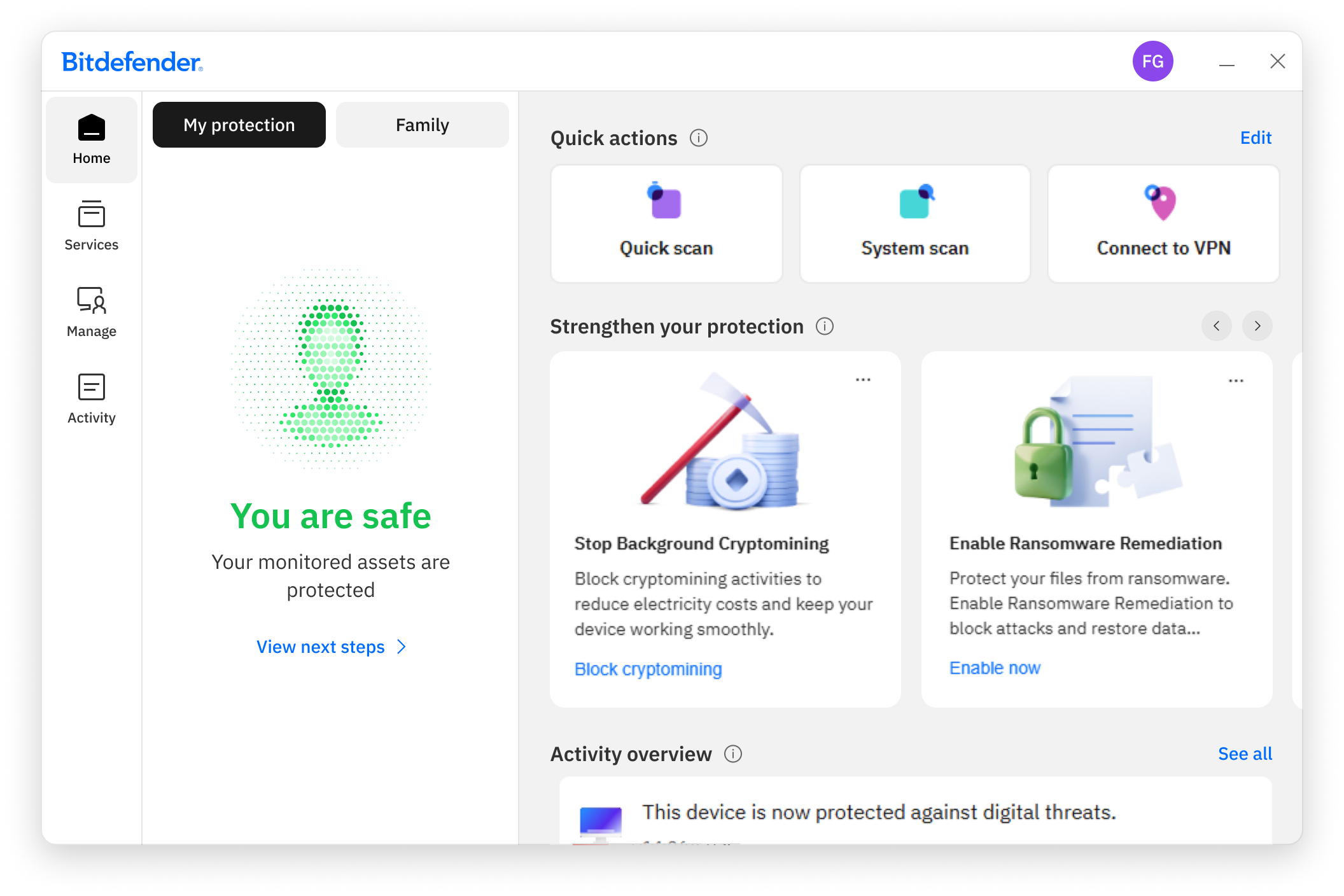
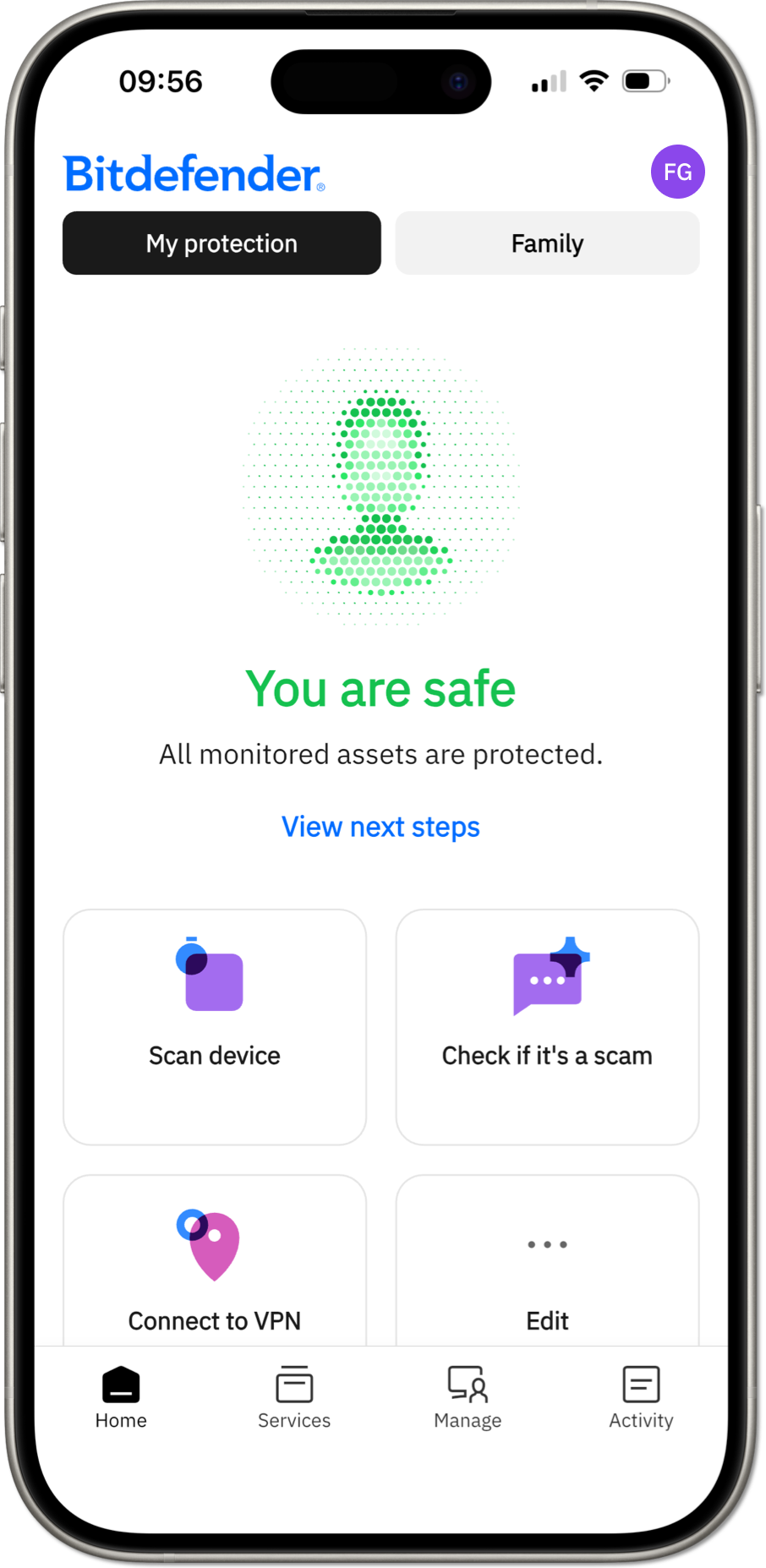
From the Bitdefender app, you can manage:
- Your account and devices
- Family members or employees
- Your local security protection (Antivirus and related features)
- Additional Bitdefender services, such as:
- VPN
- SecurePass
- Digital Identity Protection
- Identity Theft Protection
- Business Assets Exposure
Navigation through the four main sections – Home, Services, Devices (Manage), Activity – is done via the left-hand menu on desktop or through the bottom menu on mobile. Each section is described in detail below.
Home
The Home panel of the Bitdefender App shows your real-time protection status and provides quick access to key actions and features across all active services. The Home dashboard is organized into four areas:
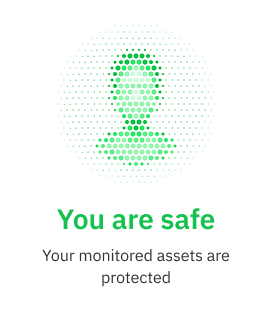
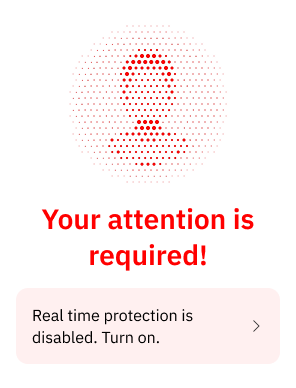
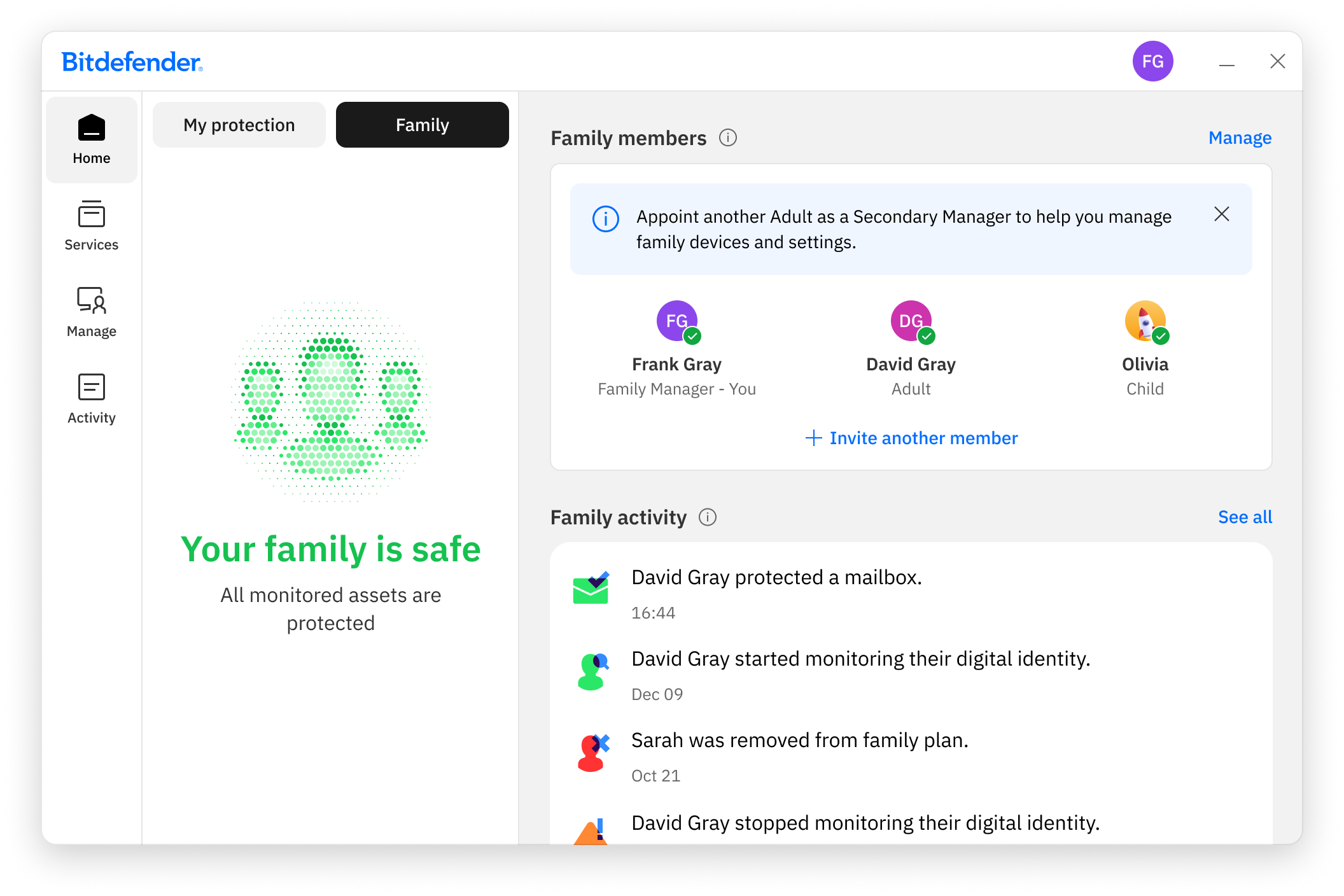
1. User Protection Status
This section shows the overall protection status for the current user and, where applicable, for family members or managed users.
Status indicators:
- Green = No security issues; all devices and digital assets are protected
- Red = One or more issues require your attention
Important!
- Security issues cannot be dismissed.
- By default, issues on other devices affect your overall status. You can disable this behavior per device in Settings, so issues on other devices remain visible but no longer affect your main status indicator.
- When no issues are present, you may see suggested actions to personalize or enhance your protection.
- Family managers or business owners can invite new members directly from this section.
- For adults and teenagers, the family manager can only view the issues.
- For children, the family manager can both view and fix the issues from this screen.
2. Quick Actions
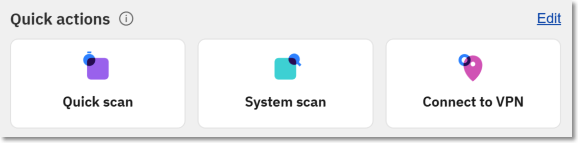
Quick Actions provide fast access to commonly used tasks, such as:
- Running a device scan
- Connecting to VPN
How it works:
- After installation, 1–3 actions are shown by default, depending on available services.
- Actions are ordered based on priority and service availability.
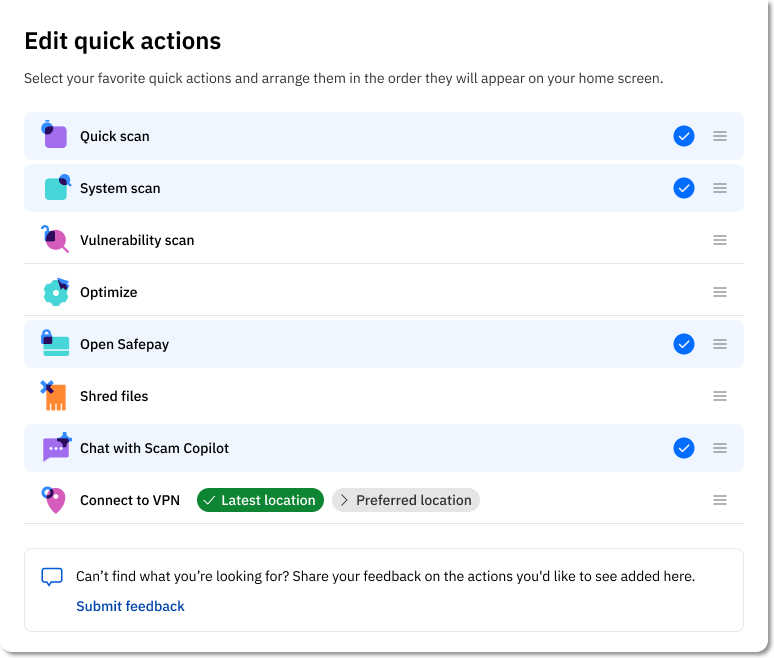
- You can:
- Add more actions
- Reorder actions
- Provide feedback about the section
Quick Action tiles update in real time, even if the action was started from another part of the app.
3. Strengthen Your Protection
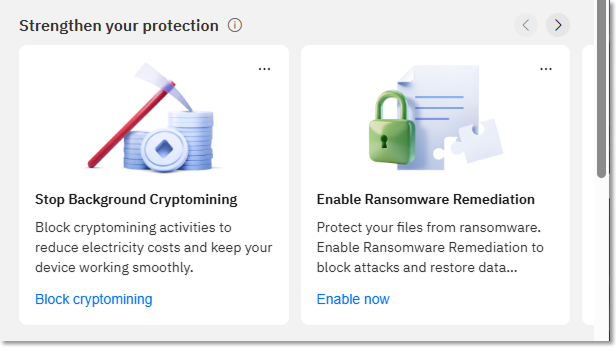
This section highlights optional recommendations that help you discover and activate additional features included in your Bitdefender subscription.
How it works:
- Higher-priority recommendations appear first.
- You can dismiss recommendations at any time.
- A recommendation disappears automatically once the related action is completed.
- Dismissed recommendations may reappear if still relevant, but not sooner than 30 days.
- If no recommendations are available, this section is hidden and reappears automatically when needed.
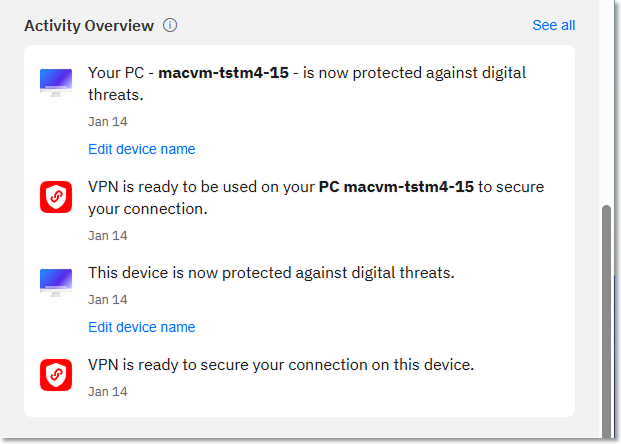
4. Activity Overview
The Activity Overview shows a timeline of security-related events and actions for the current user and managed members.
Account-level activity
- Displays important events across your Bitdefender account
- Events are visible on all devices
- If a critical unread event exists, the app may automatically highlight it
For users with admin roles:
- Includes both personal activity and group or member activity
- Filters are applied automatically depending on whether Activity is accessed from a personal or group dashboard
Service-specific activity
- Some services provide detailed, device-specific logs
- Events may include severity levels and read/unread status
For security-related critical events:
- An unread badge appears on the Activity menu
- Opening Activity takes you directly to critical security events
Services
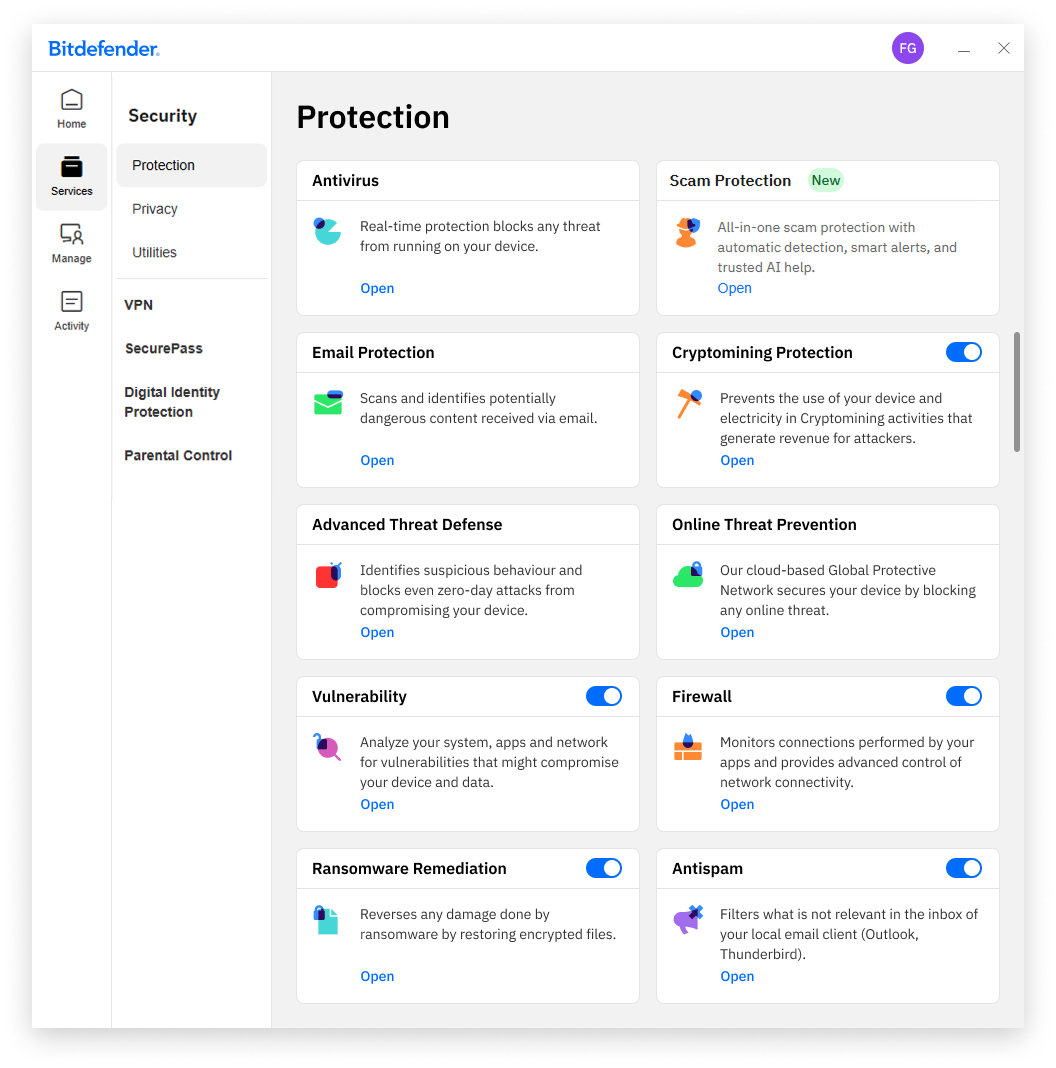
The Services panel contains all active security features and additional Bitdefender services available with your subscription.
Integrated Services
These services are visible and managed directly in the Bitdefender App:
- Security – Security features vary by operating system and are organized into several categories on desktop:
- Windows: Security features are grouped into Protection, Privacy, and Utilities
- macOS: Security features are grouped into Protection and Privacy
- VPN
- Connect and change VPN servers
- Advanced VPN settings are available under “Account & Settings”
- SecurePass – A password manager designed for the most cautious users that securely stores and autofills your login credentials.
Linked Services
These services are visible in the app but managed through Bitdefender Central:
- Digital Identity Protection
- Identity Theft Protection
- Parental Control
- Business Assets Exposure
Devices (Manage)
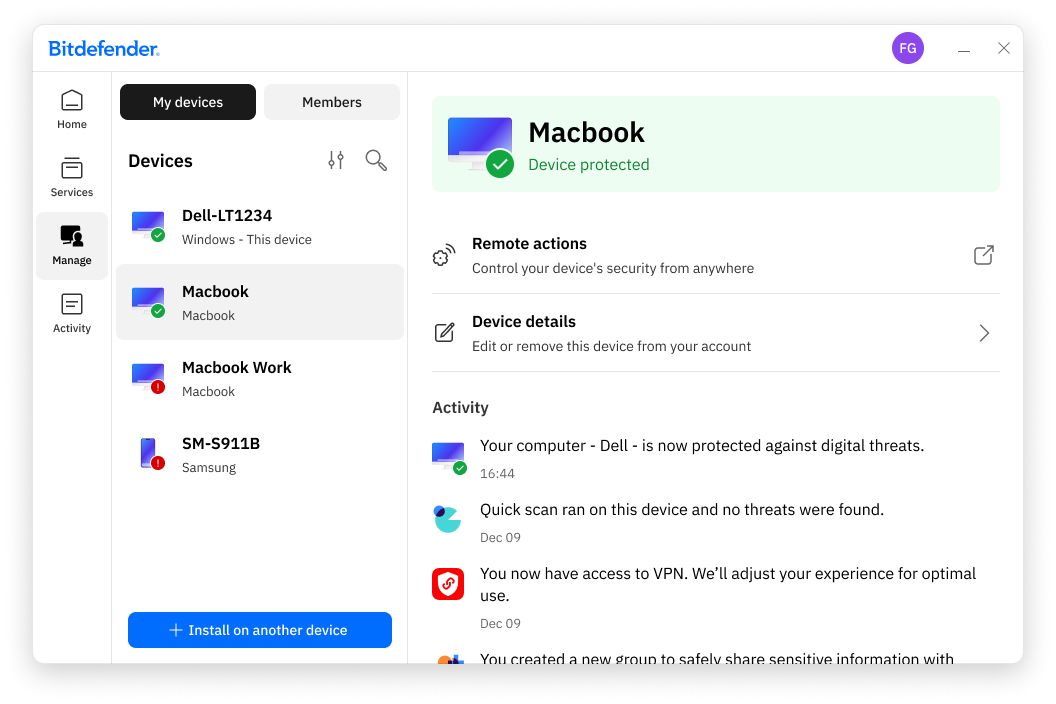
The Devices section provides an overview of all devices and users associated with your account.
If you are the family manager or secondary manager of a Bitdefender Family subscription or the business owner or security admin of a Bitdefender Ultimate Small Business Security subscription, this section will appear as “Manage” instead of “Devices”.
My devices
- View personal device details and security status
- Perform remote actions where available
- Install Bitdefender on additional devices using:
- A download link
- A QR code
Members
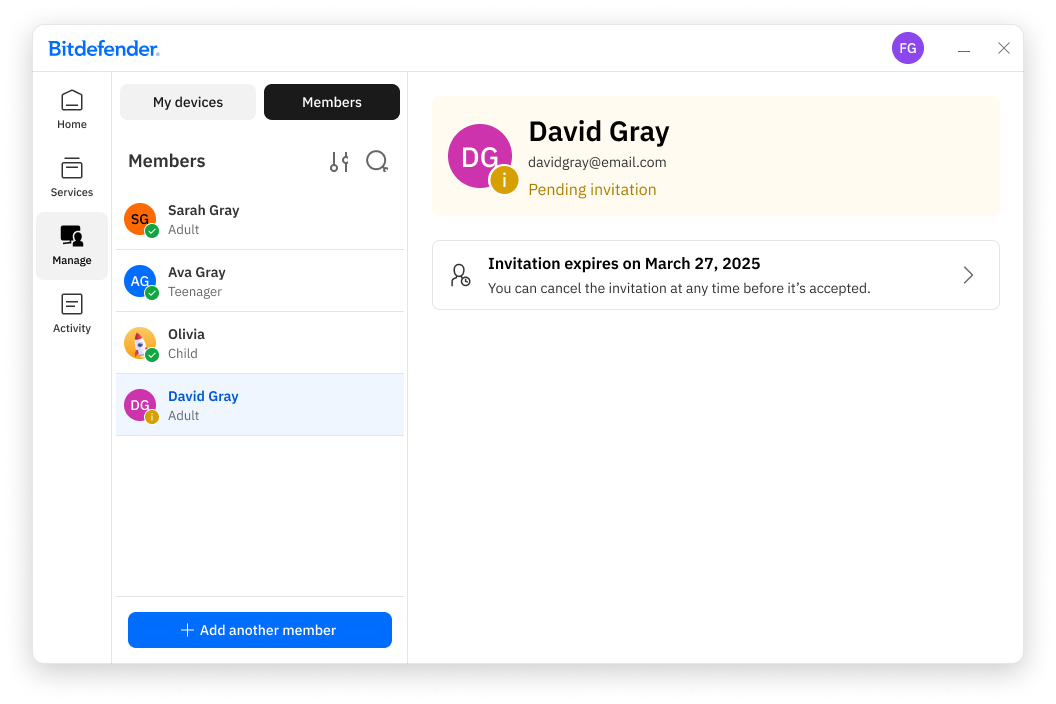
- View family members or employees included in the subscription
- See their device details, security status, and active services
- Invite new members (adults or teenagers) by email so they can install Bitdefender on their own devices
Activity
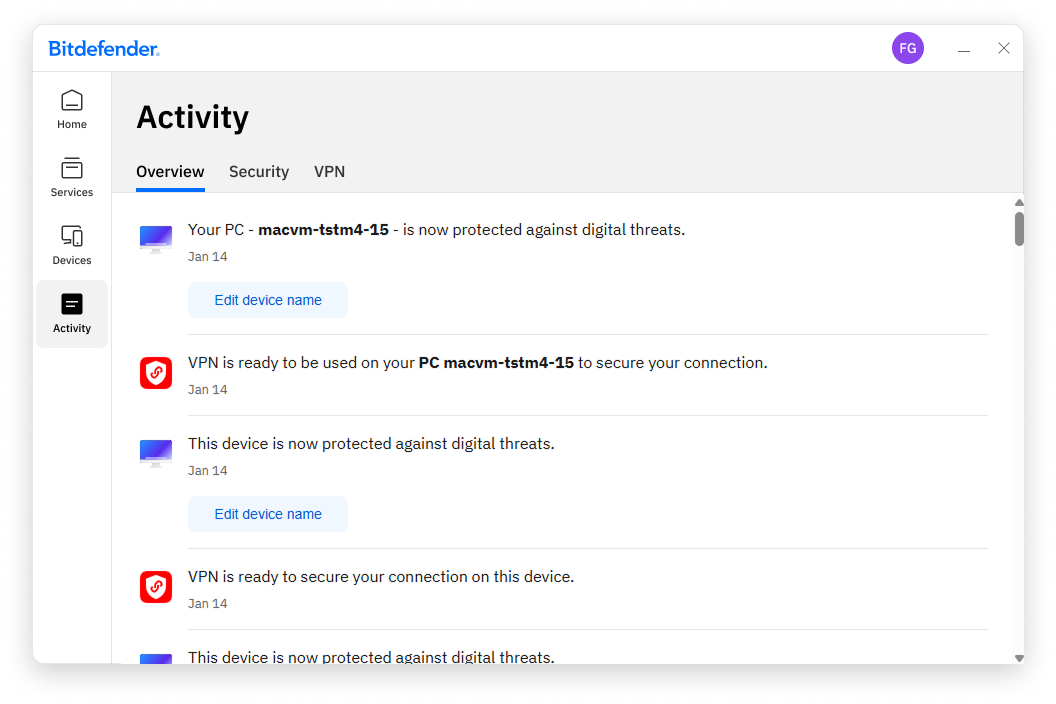
The Activity panel provides a detailed view of notifications and events for your account. It includes three tabs:
Overview
- Lists changes and events for all devices and users
- Admins can filter events by personal or group activity
- Filtering is applied automatically depending on how the section is accessed
Security
- Security detections and alerts for the current device
- Includes device-specific events from security services
VPN
- VPN-related notifications for the current device
- Events appear only when VPN is used
The profile icon located at the top right of the Bitdefender interface leads to the Account & Settings section.
Account & Settings
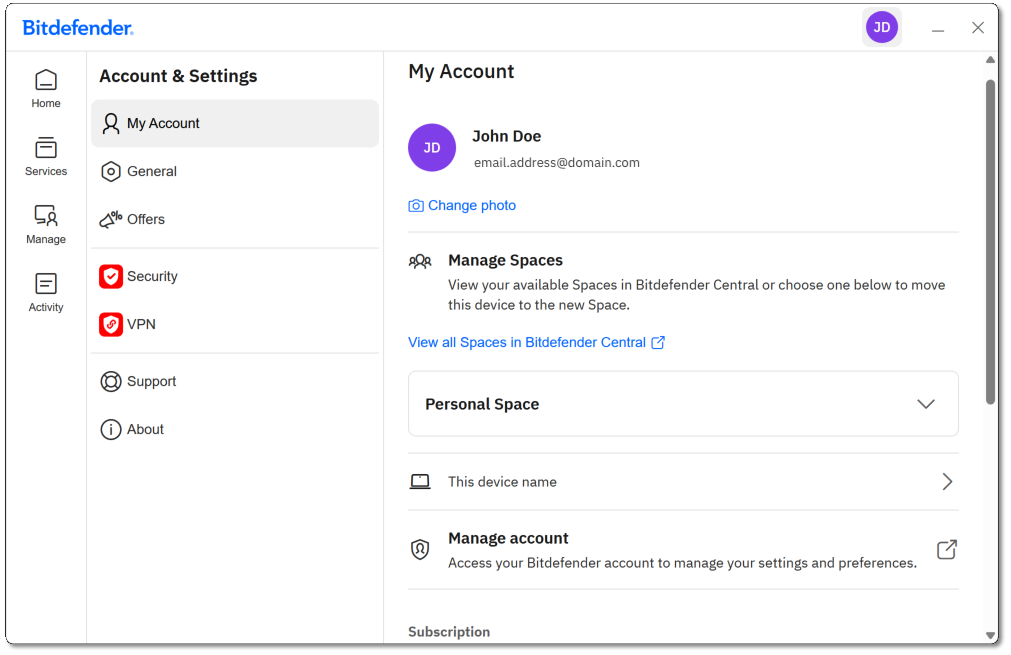
The Account & Settings panel is accessed from the top-right user icon and centralizes account information and app configuration.
My Account
- Email and full name
- Profile photo
- Manage Spaces (Personal or Business)
- Current device name and rename option
- Access Bitdefender Central to manage account settings
- Subscription details (including managed member information)
- Activate with a code
- Delete account (mobile only)
- Restore purchases (mobile only)
- Sign out
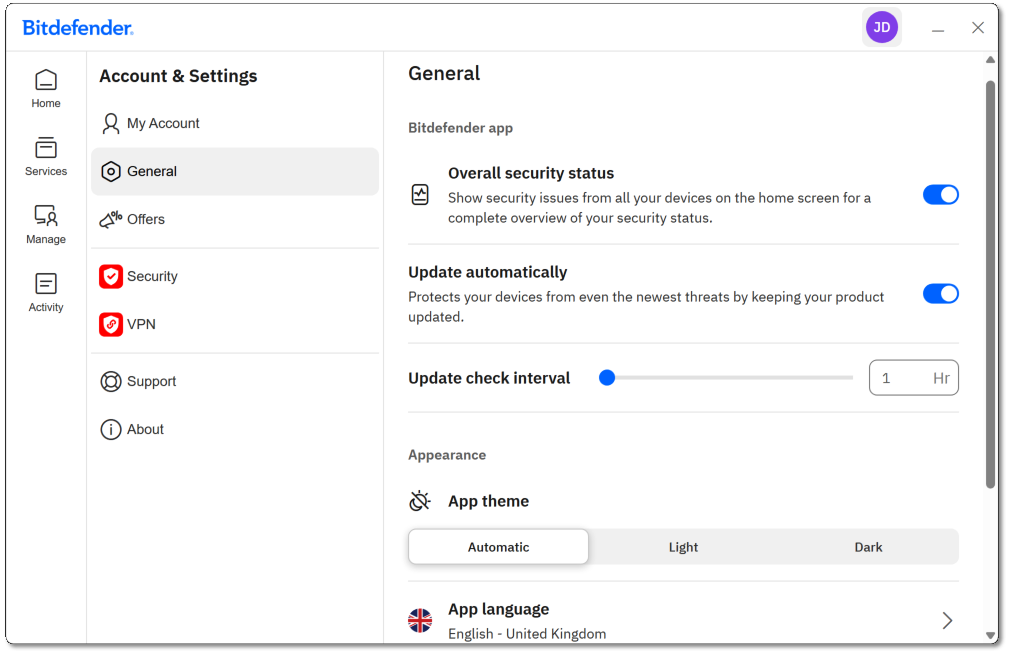
General
- Overall security status behavior
- Update options (automatic updates, intervals, silent updates)
- App theme (light, dark, automatic)
- App language (Windows and macOS)
- Product reports
- Special Offers visibility
Offers
- Dynamic commercial offers
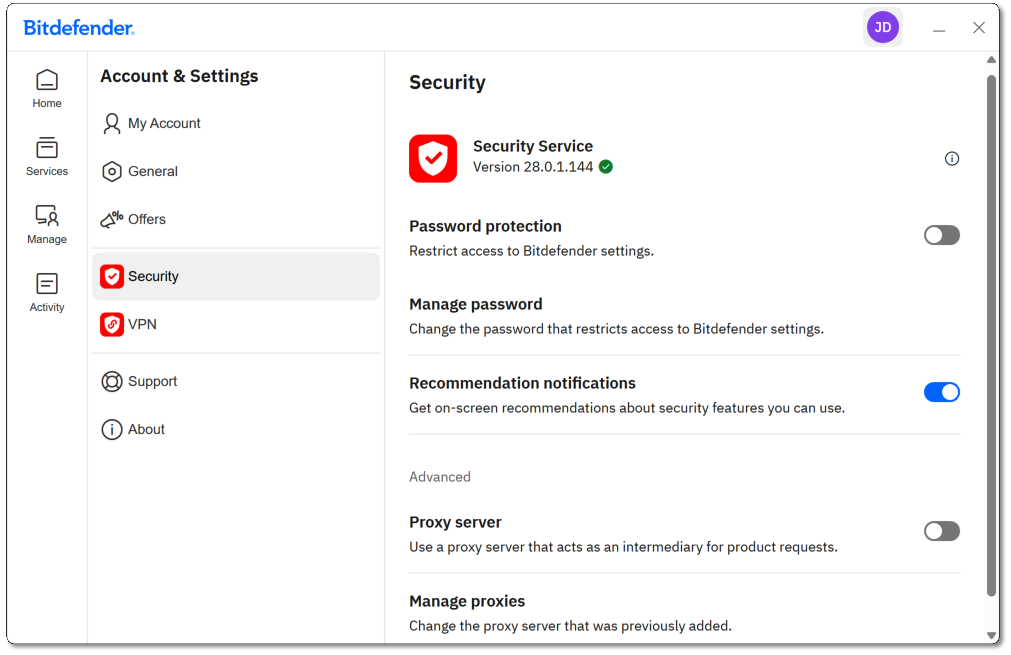
Security (platform-specific)
Windows
-
- Service version
- Password protection
- Security widget
- Proxy server settings
- Recommendation notifications
macOS
-
- Service version
- Recommendation notifications
Android
-
- Service version
- Feature descriptions
- Platform-specific settings
iOS
-
- Service version
- Web Protection notifications and agreement
VPN
- Service version
- General, Privacy, and Advanced VPN settings
Support
- Support Center
- Community forum
About
- App version and Update button
- Subscription Agreement
- Privacy Policy
- Third-party license terms
By exploring each section of the interface, you can easily manage your security and make the most of your Bitdefender services.