This guide shows how to set Bitdefender Hub as the default password manager on Android devices.
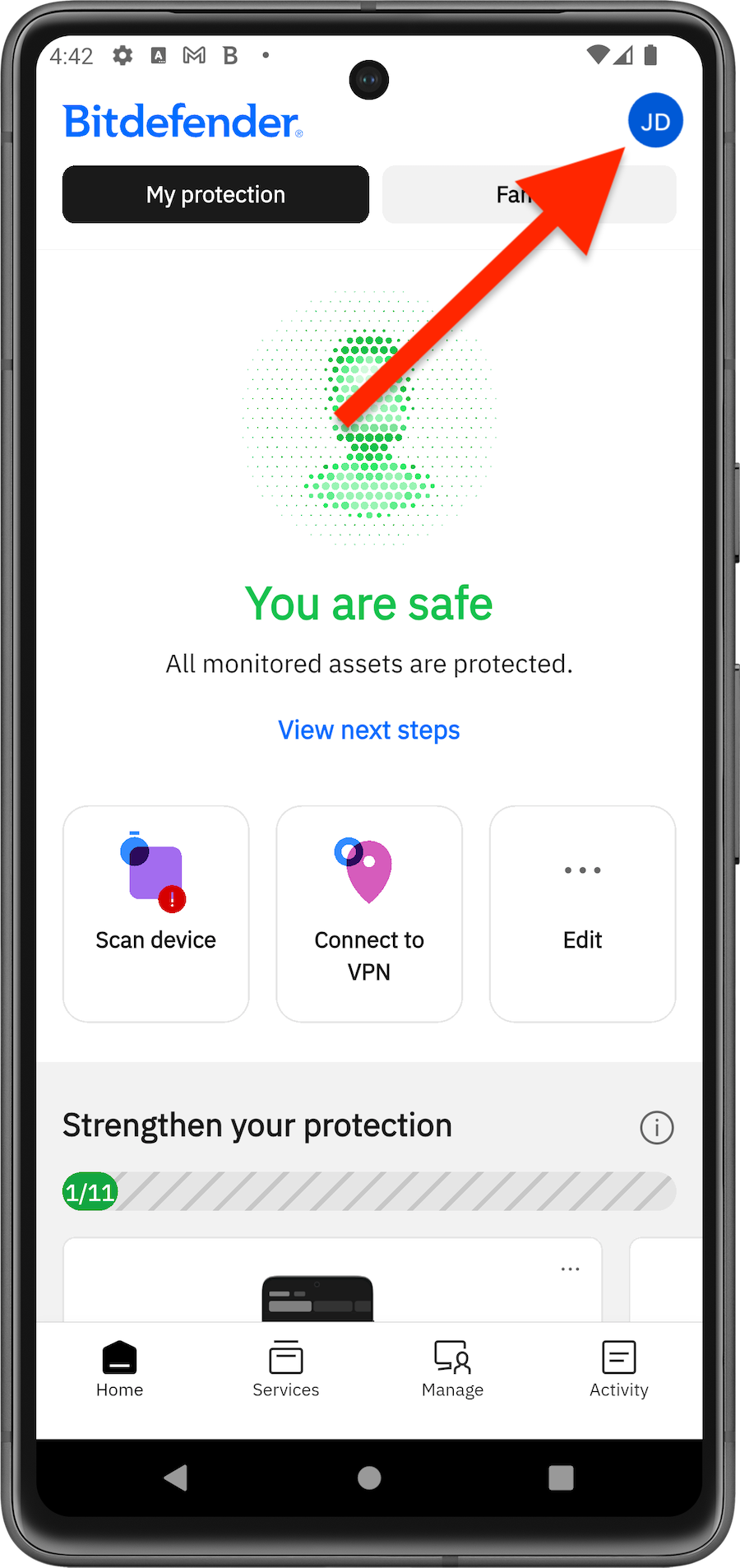
1. Open the Bitdefender Hub app  on your Android smartphone or tablet.
2. Tap the profile icon at the top right, then tap on SecurePass.
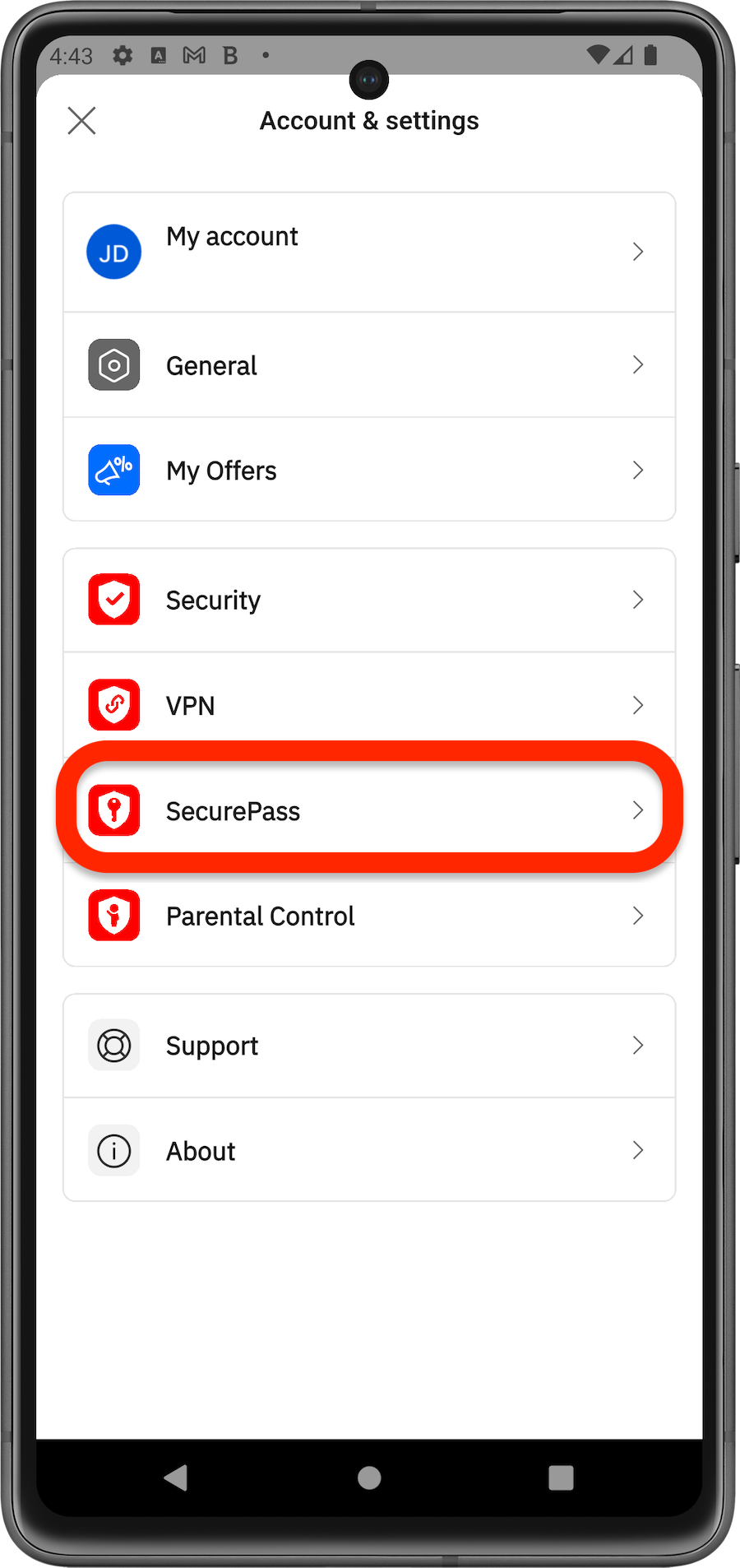
3. Unlock your vault using the master password or biometric authentication.
4. Tap Default password app.
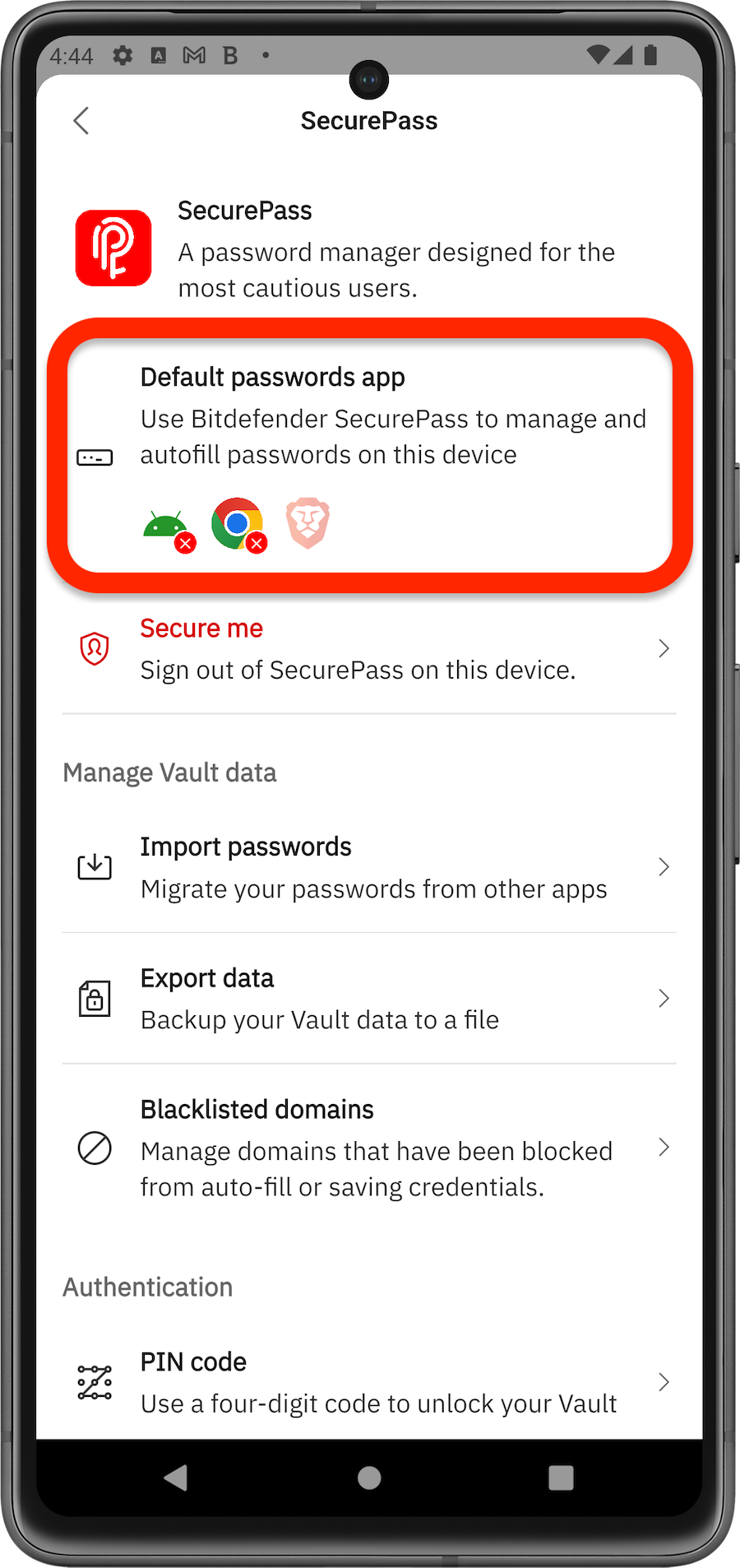
5. Enable Bitdefender Hub in the Autofill service list > Confirm the change.
Or go to Android Settings → Passwords & accounts (System → Language & Input → Advanced – for Android 11 and earlier) → Autofill service → enable Bitdefender Hub.
Additional steps for Chrome (v135+) and Brave (v1.79.119+):
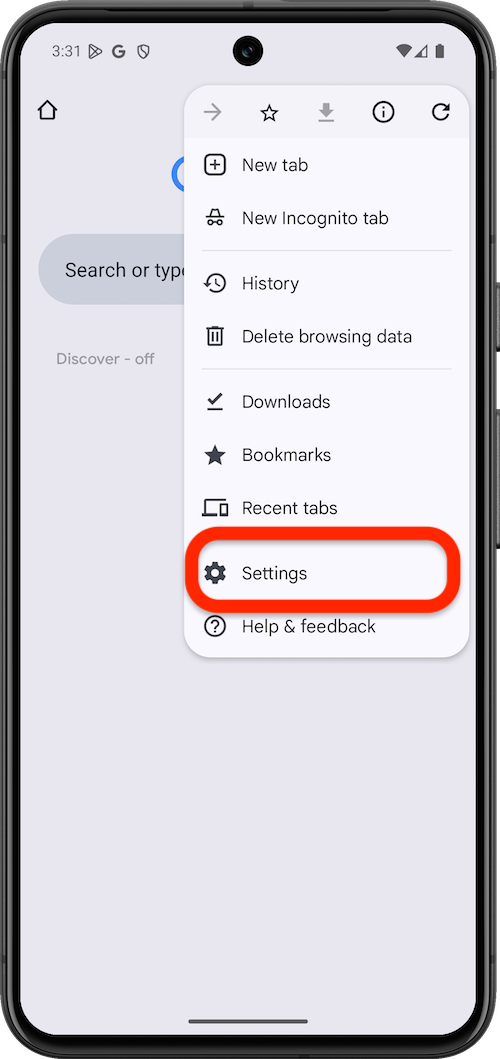
6. Open your Chrome or Brave browser, then tap the menu in the top-right corner.
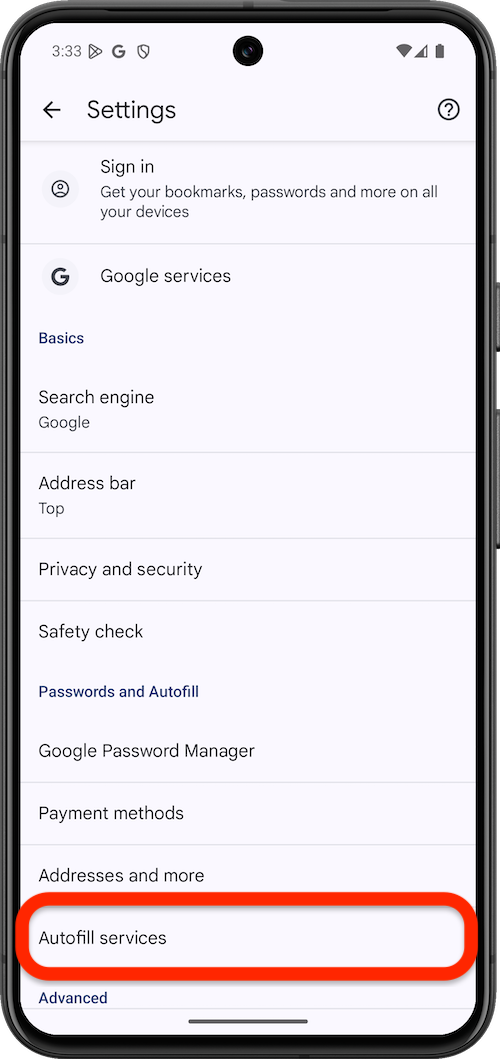
7. Go to Settings > Autofill Services.
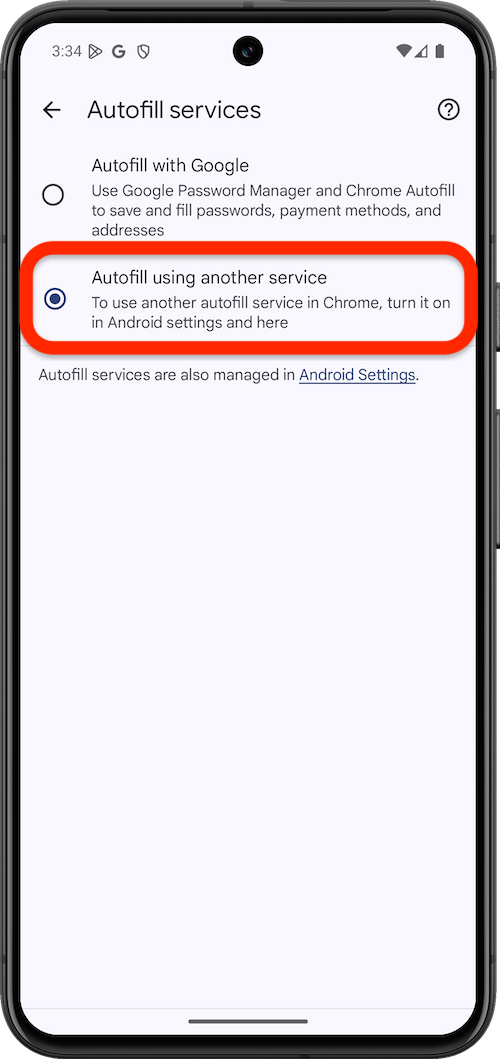
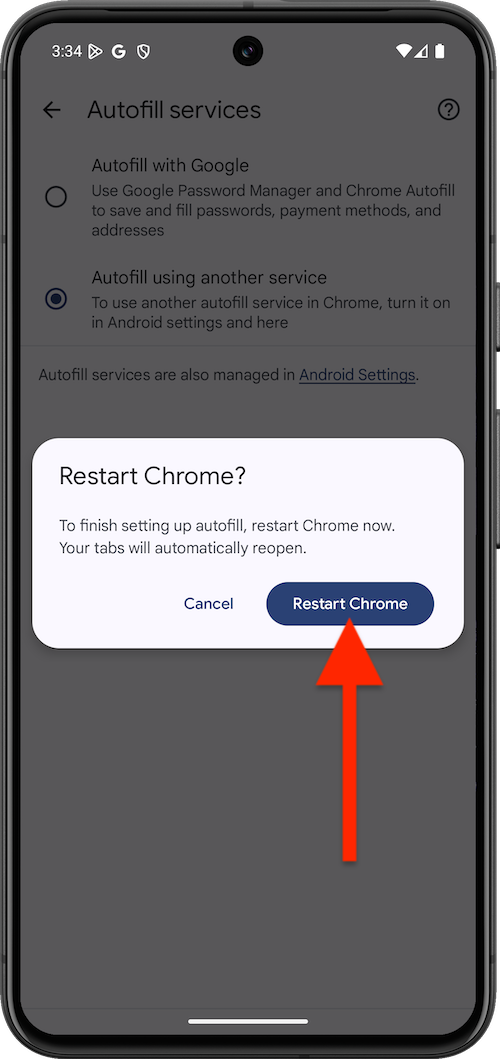
8. Select Autofill using another service > tap Restart Chrome or Restart Brave when prompted,
That’s it! Bitdefender Hub is now your default password manager on Android.