This article explains how to use the BDsysLog utility on macOS computers. Developed by Bitdefender Labs, BDsysLog scans critical system areas to enable security experts identify evasive or unknown malware on your device. BDsysLog collects specific system information that may indicate active malware or malware-related activity. The gathered data is sent to Bitdefender Cloud Services for processing. After the analysis is complete, the tool generates a local archive named bdsyslog.zip, which contains the detailed log.
When you contact Bitdefender support claiming suspicious malware-like behavior, a representative may ask you to provide detailed information:
- a full description of the symptoms that make you suspect your Mac is infected
- a screenshot of the malware signs you see on the screen – How to take a screenshot on Mac
- a BDsys log – Use the method described below to generate a BDsys log.
1. Download the correct BDsysLog tool
On the affected Mac that shows signs of infection, click the link that matches your computer type:
To find out if your Mac has an Intel or Apple M-series chip, click the Apple icon () > About This Mac, then look for “Chip” (Apple Silicon) or “Processor” (Intel) on the Overview tab. Apple Silicon Macs say “Chip” with an M-series name (like M1, M2, M3), while Intel Macs say “Processor” with an Intel Core name (like i5, i7, i9).
- For Mac with Apple M chip:
https://download.bitdefender.com/supporttools/bdsyslog/MacOS/arm64/BDSysLog_i - For Mac with Intel processor:
https://download.bitdefender.com/supporttools/bdsyslog/MacOS/amd64/BDSysLog_i
After downloading, the file will likely be in your Downloads folder.
2. Allow the tool to run
macOS requires you to tell it that this tool is safe to run. To do this:
- Open Terminal (from Applications → Utilities → Terminal).
- Type the following (Replace “Downloads” with the folder on your Mac where BDSysLog_i was saved.):
chmod 755 ~/Downloads/BDSysLog_i - Press Enter on your keyboard.

That’s it – this only tells macOS the file is allowed to run.
3. Grant Full Disk Access
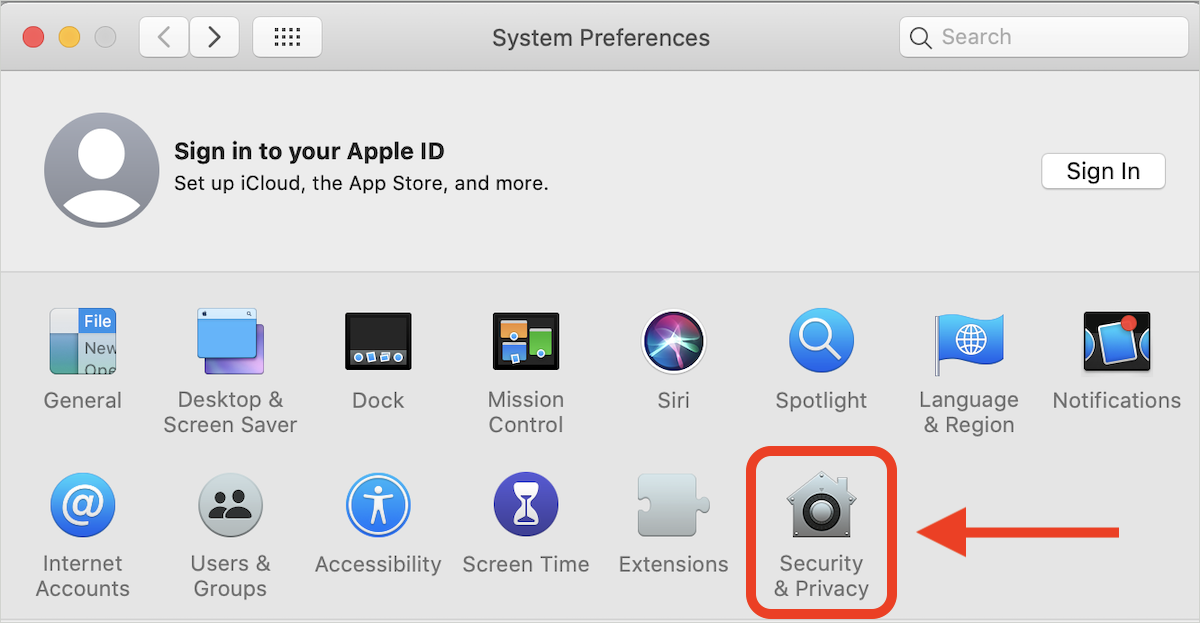
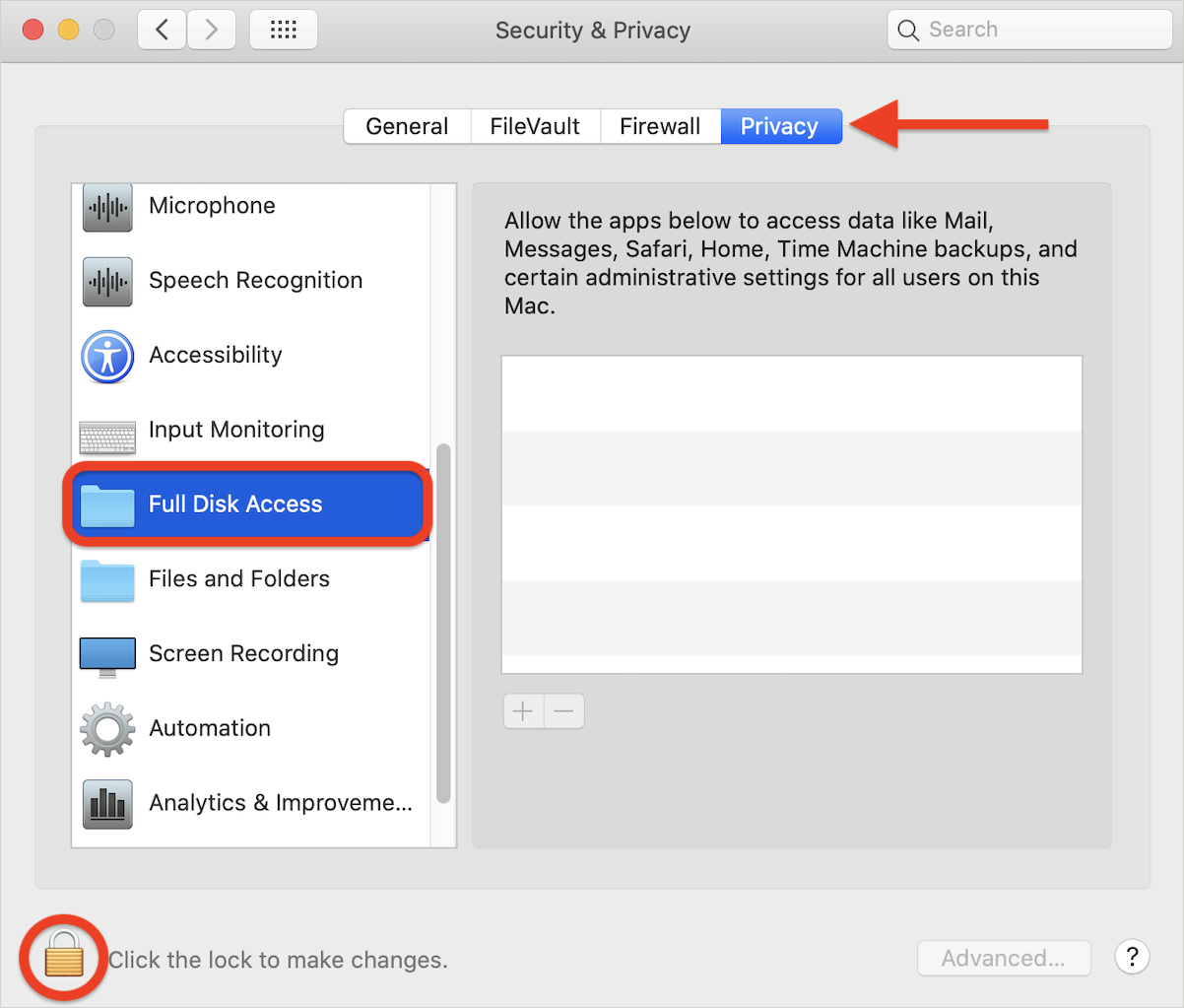
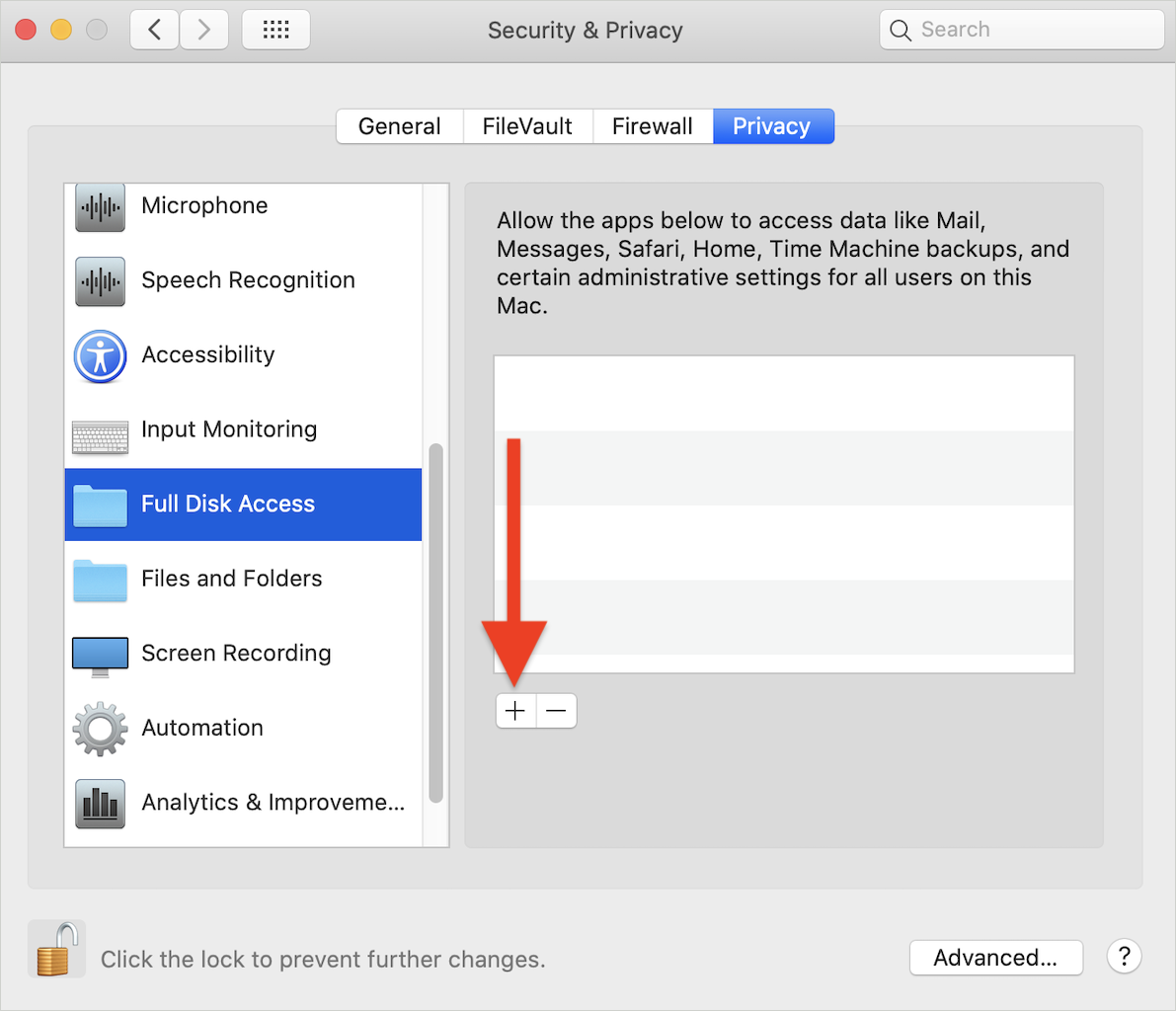
For BDsysLog to scan Safari and other privileged files, you need to grant it Full Disk Access. Follow the steps for your version of macOS – Which macOS is installed?
macOS Ventura 13 and later

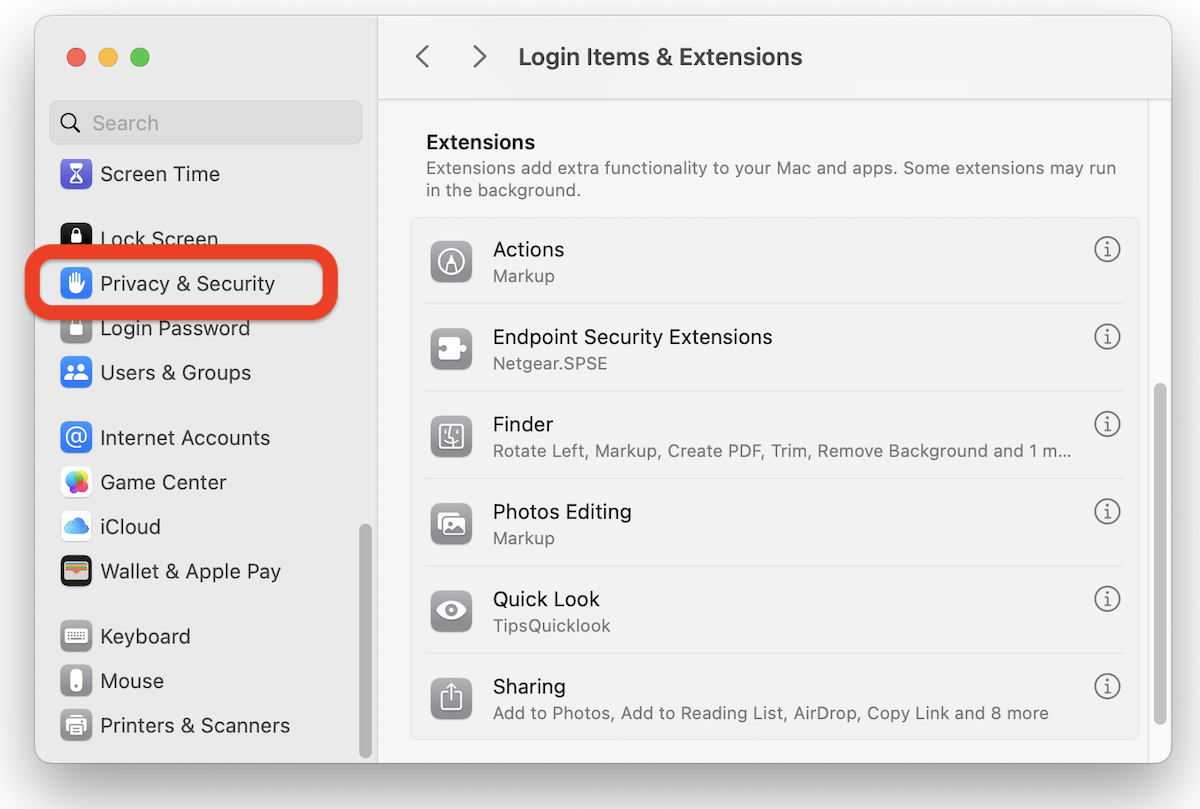
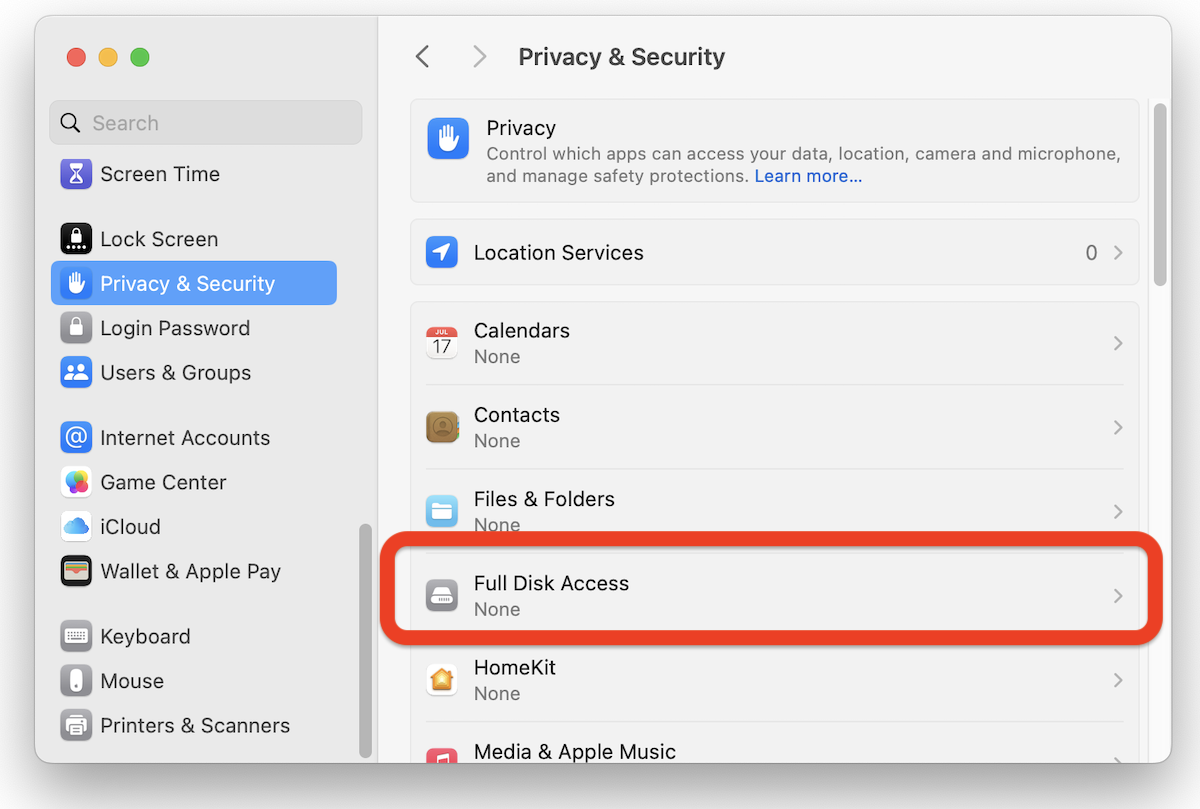
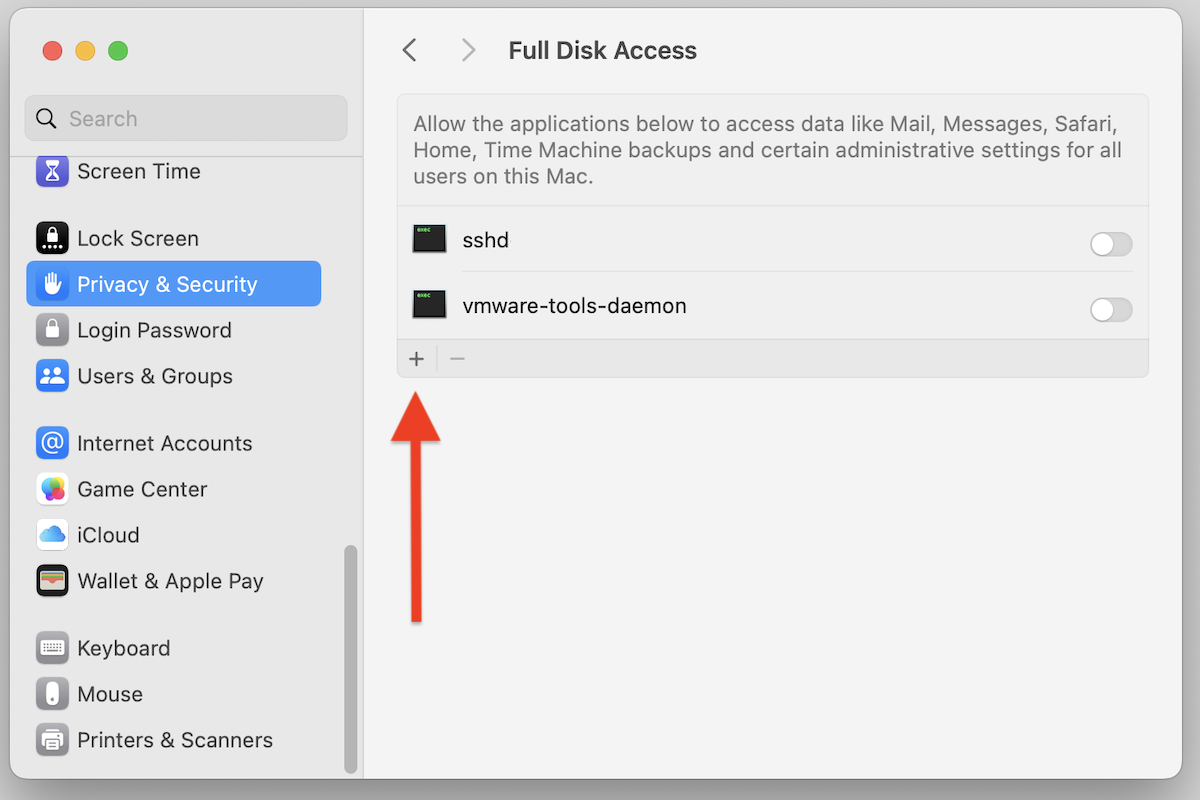
macOS Monterey 12 and earlier
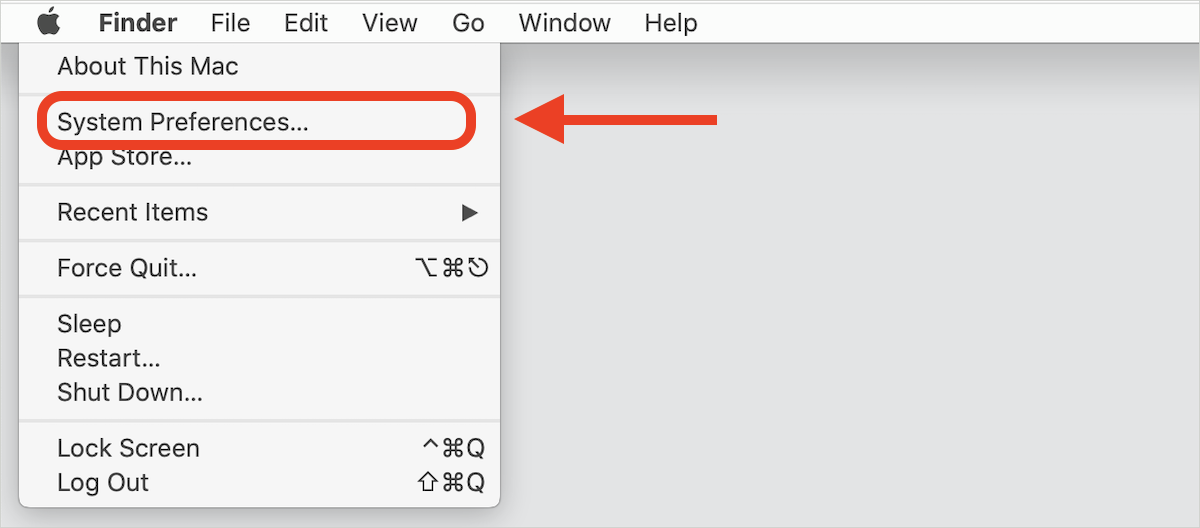
4. Run BDSysLog with admin privileges
This part must be done in Terminal so the tool can run with administrator permissions.
- Open Terminal again.
- Run this command:
sudo ~/Downloads/BDSysLog_i - Enter your Mac’s password and press Enter. (The password be invisible as you type – this is normal.)

- Click Allow each time you are prompted.
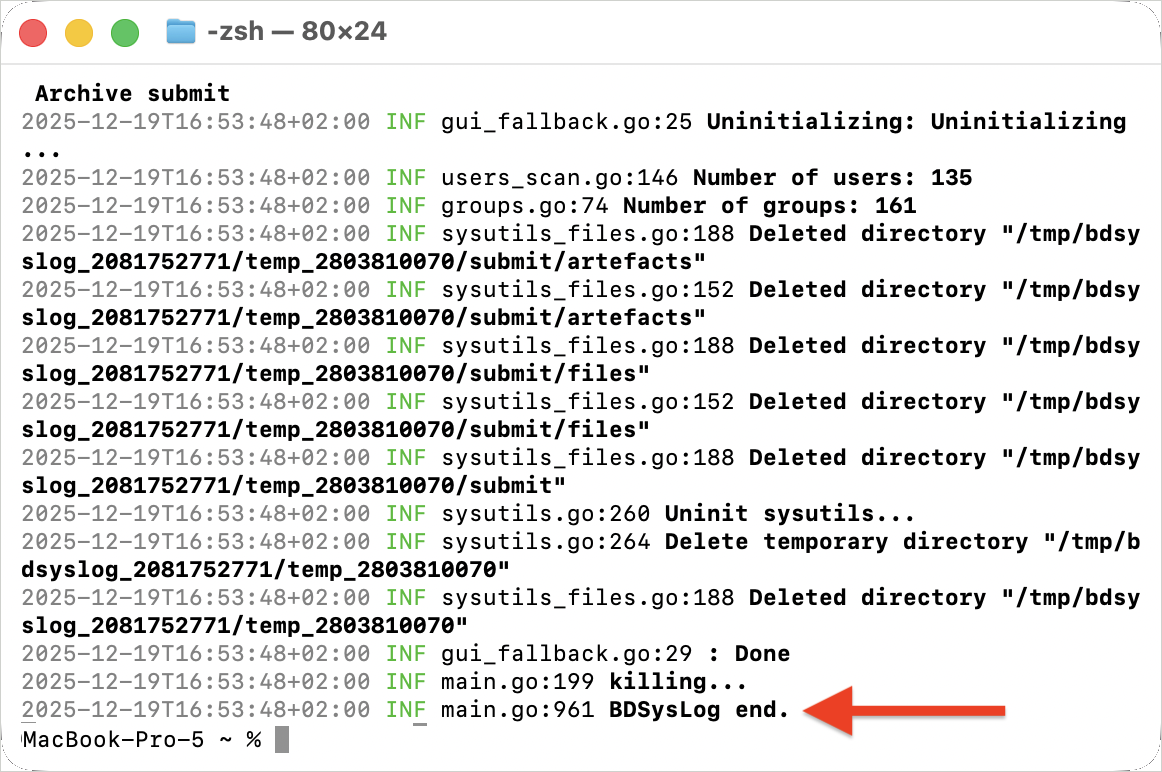
- Wait for BDsysLog to end the scan. This process may take several minutes depending on your system.


5. Submit bdsyslog.zip
- When the tool finishes, a file named bdsyslog.zip will appear in the same folder as the tool – usually Downloads.
- Attach the bdsyslog.zip archive to your support ticket for further troubleshooting.