Bitdefender SecurePass gives you control over your account security with two features: Lock Account and PIN Setup. These tools let you lock your SecurePass vault across devices. This is especially helpful if you suspect unauthorized access, you’re using a public or shared computer, or you’ve lost a device.
Check out the options below to learn how each feature works.
Lock Account: Lock SecurePass on All Devices Immediately
What Does the Lock Account Feature Do?
When you use the Lock Account feature:
-
Bitdefender SecurePass will instantly lock on all devices.
-
To unlock the vault, you will need to enter your master password.
How to Instantly Lock Bitdefender SecurePass on All Devices
To lock all active Bitdefender SecurePass vaults:
1. Open Bitdefender SecurePass.
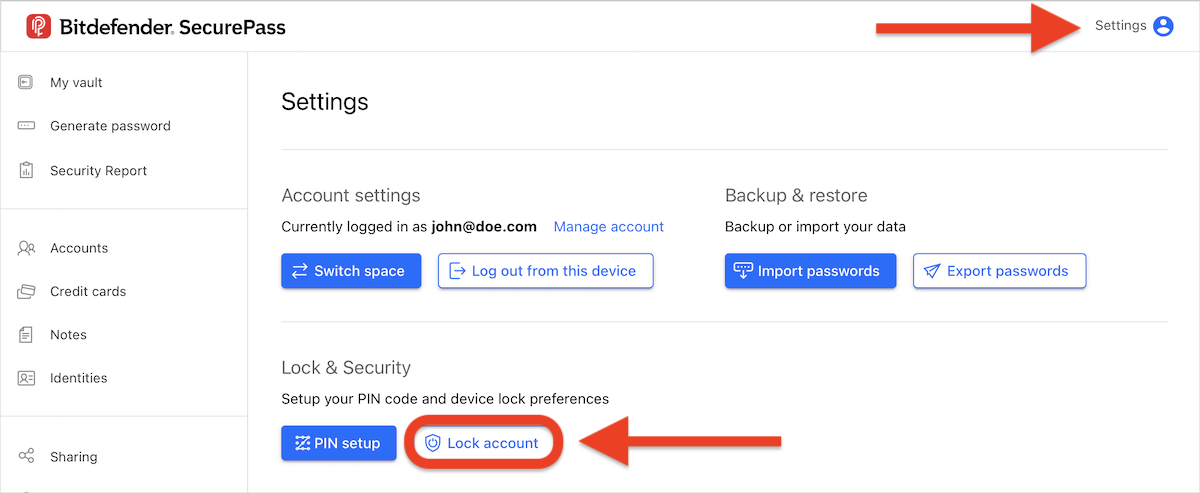
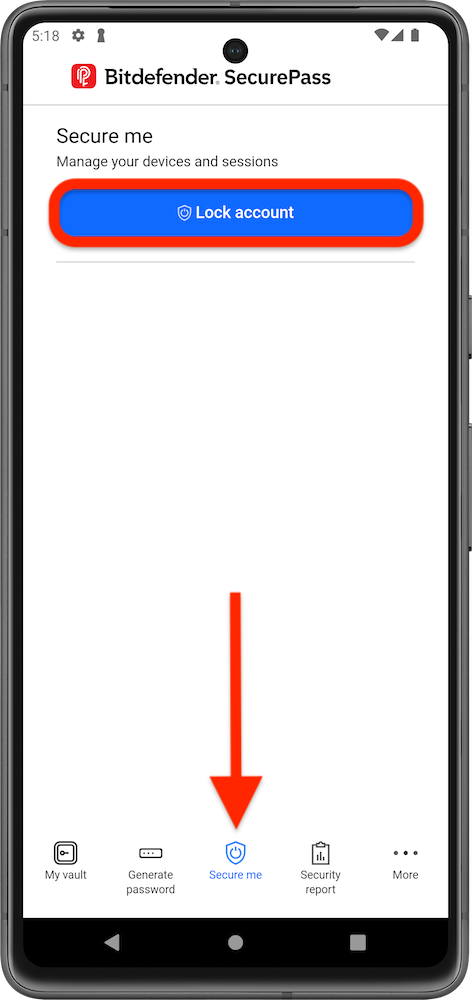
2. Go to Lock account:
- In the web version:
- Click Settings in the top-right corner of the page.
- Press the Lock Account button.
- In the mobile app:
- Tap the Secure Me menu.
- Press the Lock Account button.
PIN Setup: Lock SecurePass After a Set Time
What Does the PIN Setup Feature Do?
When you use the PIN setup feature:
- Bitdefender SecurePass will automatically lock on all devices based on the time interval you choose.
- You’ll be prompted to enter a 4-digit PIN to unlock SecurePass – no need to type your full master password every time.
- If you forget your PIN or enter it incorrectly too many times, you can still unlock the vault using your master password.
How to Automatically Lock Bitdefender SecurePass After a Set Time
To set SecurePass to auto-lock and require a PIN to unlock:
1. Open Bitdefender SecurePass.
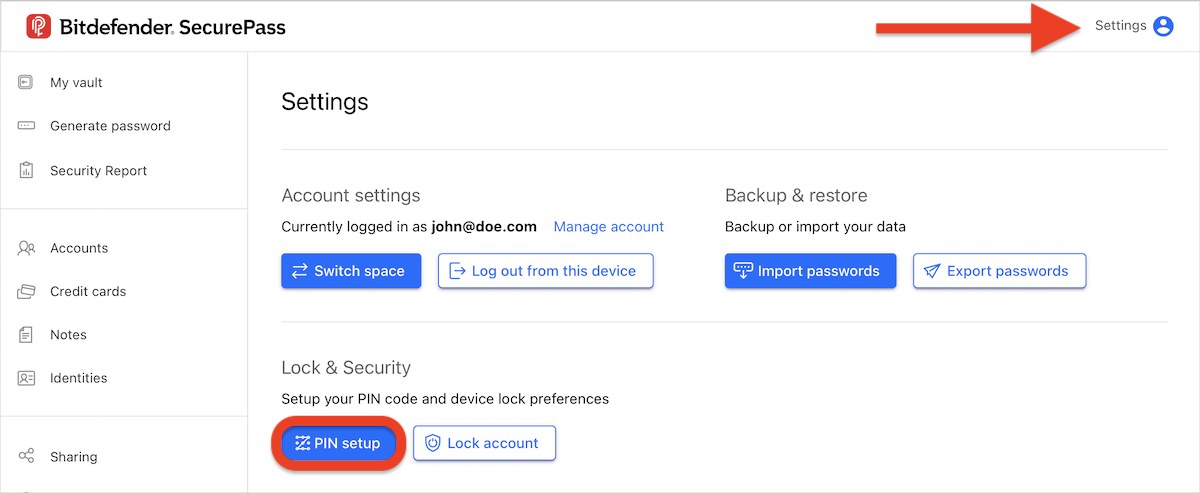
2. Go to PIN setup:
- In the web version:
- Click Settings in the top-right corner of the page.
- Press the PIN setup button.
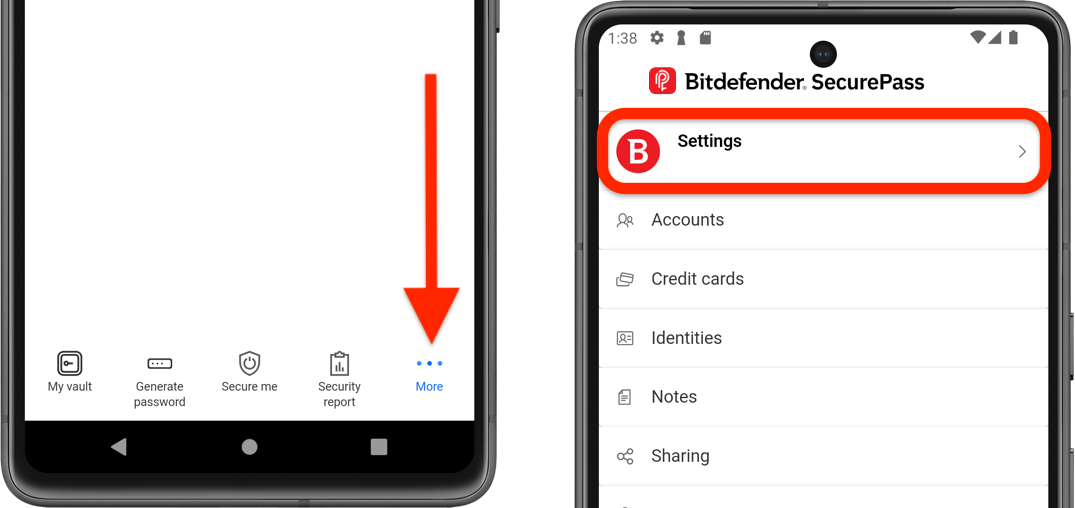
- In the mobile app:
- Tap on the More menu.
- At the top of the screen, tap on Settings.
-
- Scroll down and tap the PIN Setup button.
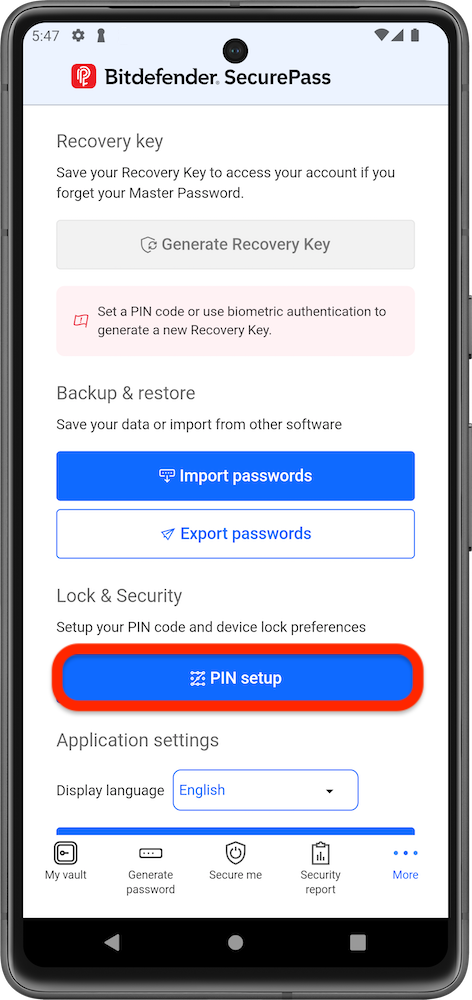
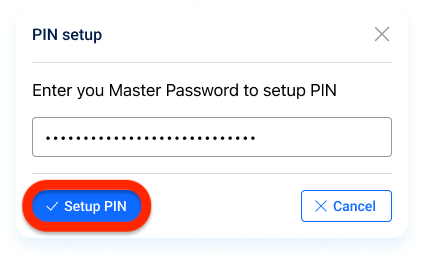
3. Enter your master password, then click Setup PIN.
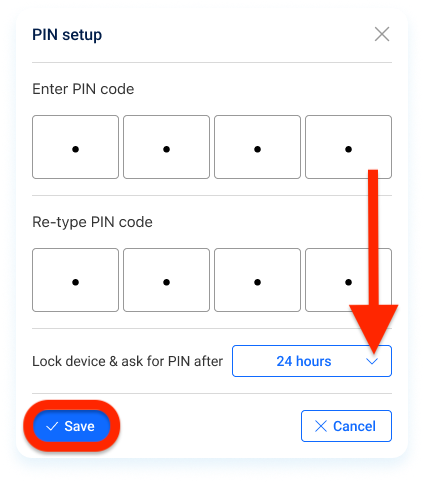
4. Enter a 4-digit PIN code and re-type it to confirm it.
5. Choose an inactivity timeout from the dropdown menu. Available options include:
- 1 minute, 3 minutes, 5 minutes, 10 minutes, 15 minutes, 30 minutes, 1 hour, 2 hours, 4 hours, 8 hours, 12 hours, 18 hours, 24 hours, or Never.
6. Press Save to apply settings.
How to Unlock SecurePass with a PIN
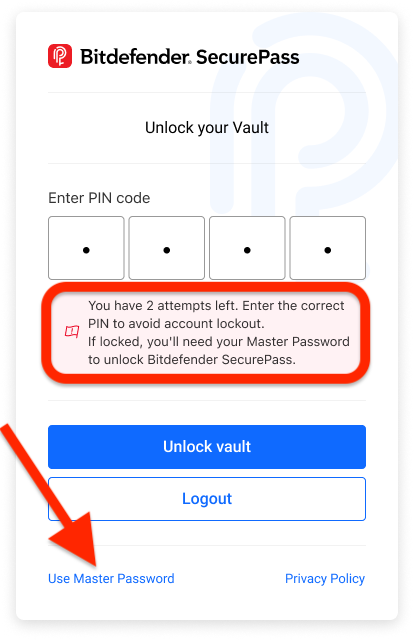
After the selected time elapses, SecurePass will automatically lock. When you try to access it again, you’ll see the message: Unlock your vault. Your vault is locked due to inactivity. Use your PIN code to unlock it.
- To unlock, simply enter your PIN and press Unlock Vault.
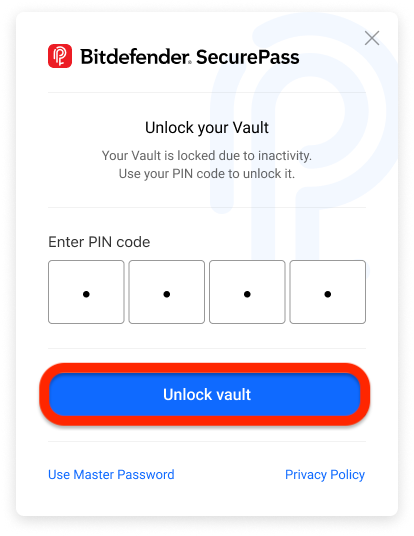
- Important: You have 3 attempts to enter the correct PIN. If you fail, or if you forget the PIN, click Use Master Password to unlock the vault with your master password.
Change PIN
To change the PIN code you previously set up in SecurePass:
1. Open Bitdefender SecurePass.
2. Go to PIN setup:
- In the web version:
- Click Settings in the top-right corner of the page.
- Press the PIN setup button.
- In the mobile app:
- Tap on the More menu.
- At the top of the screen, tap on Settings.
-
- Scroll down and tap the PIN Setup button.
3. Press the Change PIN button.
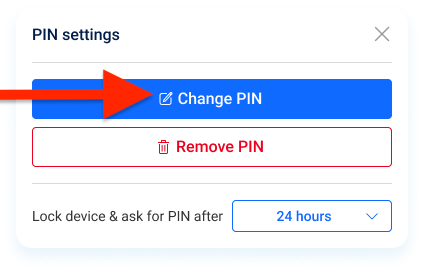
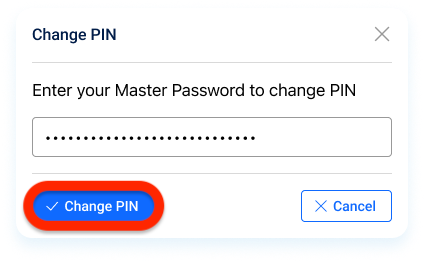
4. Enter your master password, then click Change PIN.
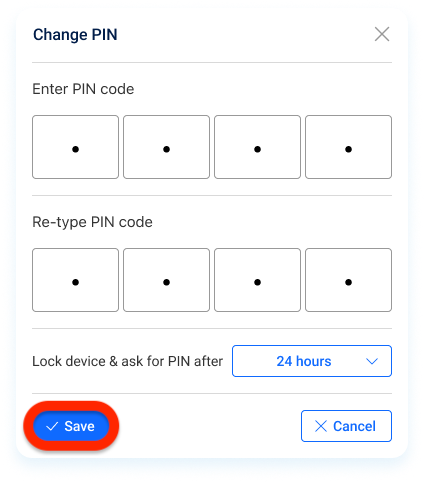
5. Enter a new 4-digit PIN code, re-type it to confirm, then click Save.
Remove PIN
To disable SecurePass auto-lock, remove the PIN code you have set:
1. Open Bitdefender SecurePass.
2. Go to PIN setup:
- In the web version:
- Click Settings in the top-right corner of the page.
- Press the PIN setup button.
- In the mobile app:
- Tap on the More menu.
- At the top of the screen, tap on Settings.
-
- Scroll down and tap the PIN Setup button.
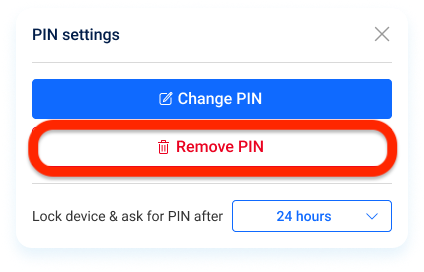
3. Press the Remove PIN button.
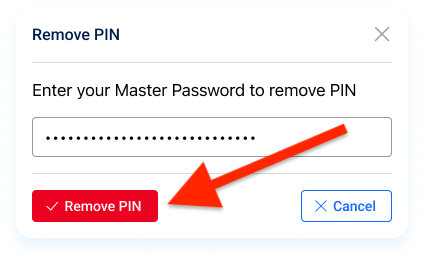
4. Enter your master password, then click Remove PIN.
This will disable Bitdefender SecurePass automatic lock and the PIN code request.