Follow the steps below to set up Scam Protection on iOS devices – iPhone and iPad – and stay safe with all-in-one scam protection powered by AI.
Step 1: Open Scam Protection
- Open Bitdefender Mobile Security.
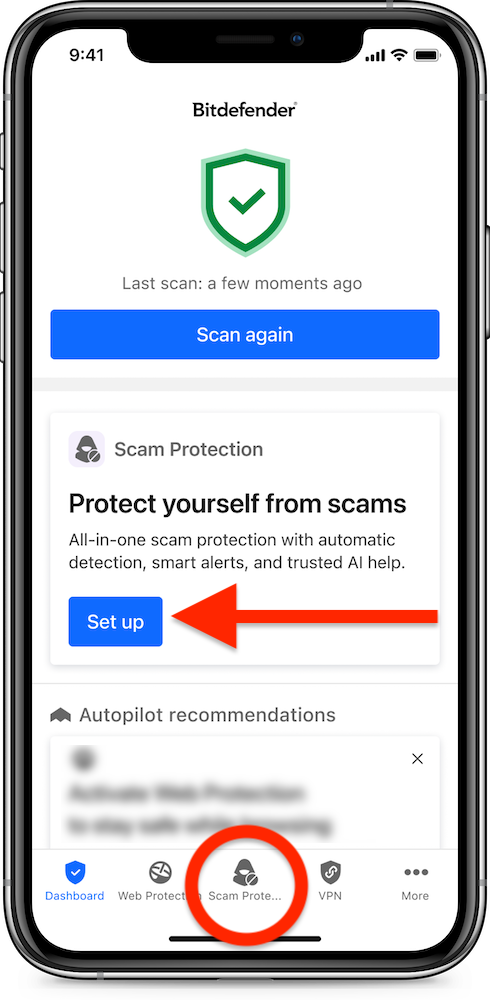
- On the main dashboard, either:
- Tap the Set up button in the Scam Protection pane, or
-
- Tap the Scam Protection icon at the bottom of the screen.
Step 2: Get Started
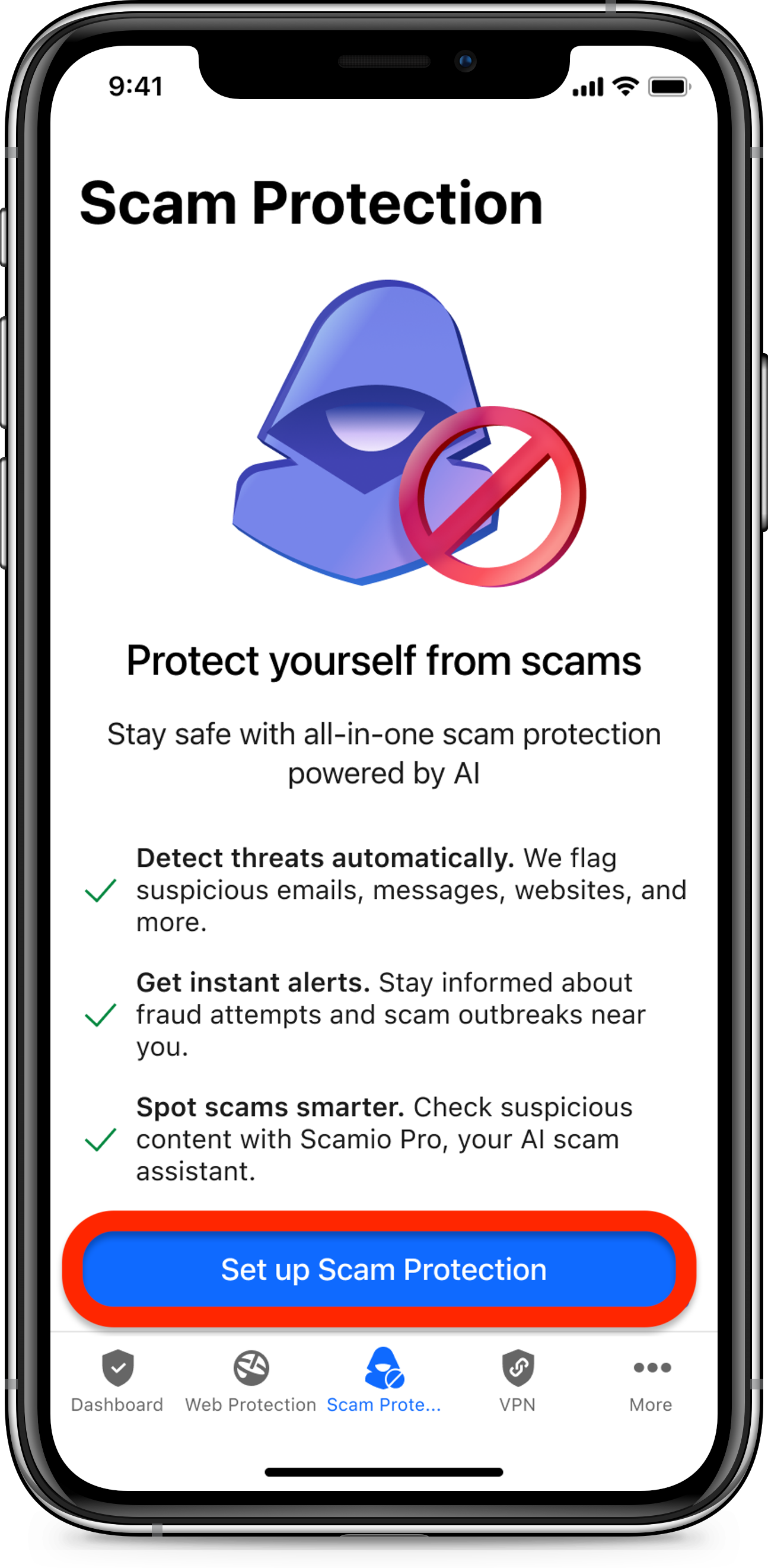
- Tap the Set up Scam Protection button on the Scam Protection overview screen.
Step 3: Set up Scam Protection
You will see which Scam Protection features are already enabled and be guided to configure those that need extra steps. Follow the on-screen instructions to grant the required permissions.
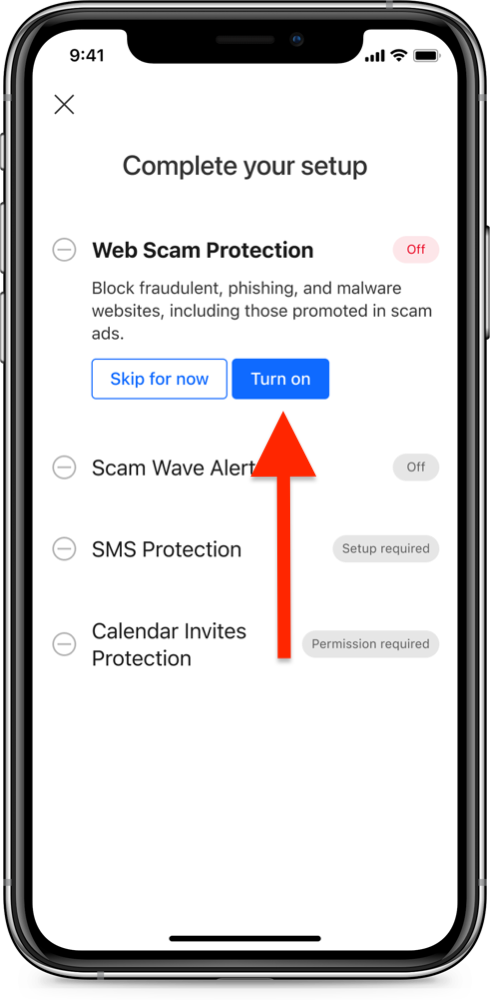
Web Scam Protection
- Tap the Turn on button.
- If Web Protection hasn’t been configured yet, you will be prompted to agree to the privacy policy.
- Choose Allow to enable Bitdefender to scan internet traffic.
- Enter iPhone or iPad PIN code to complete the Web Scam Protection setup.
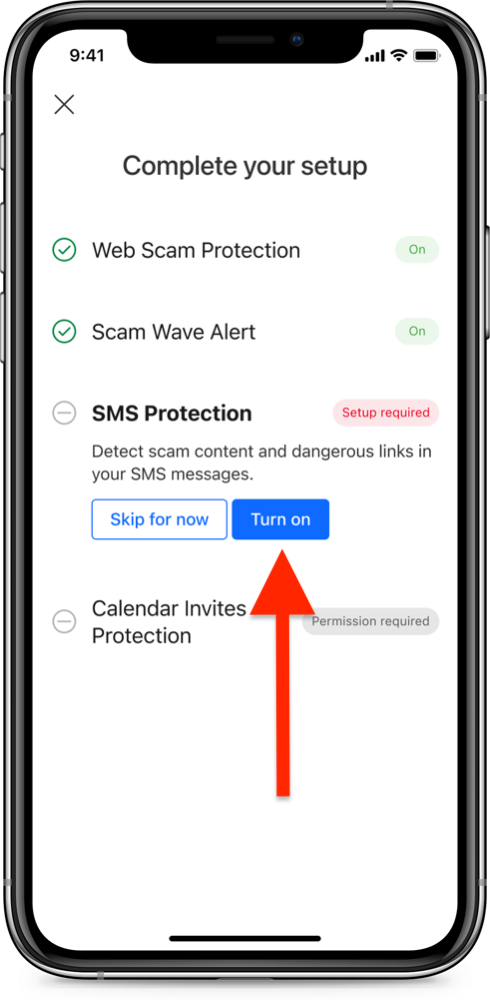
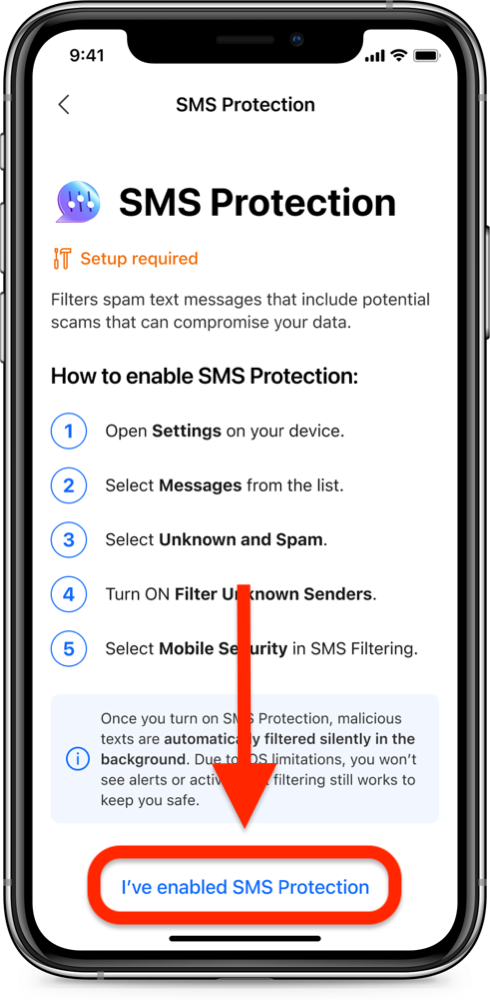
SMS Protection
- Tap the Turn on button.
- Open the
 Settings app on your iPhone or iPad.
 - Scroll down and select Messages in the list.
- Tap the Unknown & Spam section.
- Toggle Filter Unknown Senders to the on position.
- Select
 Mobile Security in the SMS Filtering section > choose Enable.
 - Go back to Bitdefender Mobile Security and tap I’ve enabled SMS Protection.
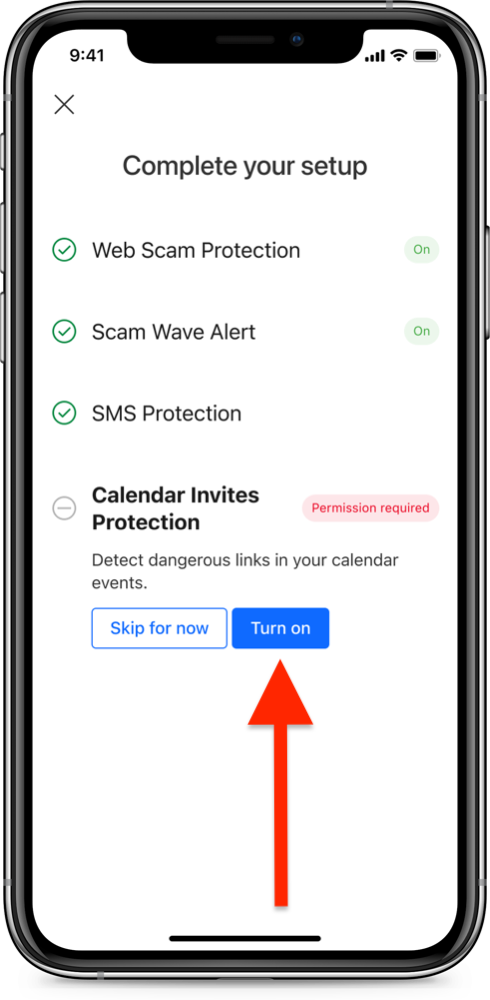
Calendar Invites Protection
- Tap the Turn on button.
- Allow Bitdefender to scan the Calendar for dangerous links and scams.
Step 4: Finish Setup
- Once all Scam Protection components are enabled, you can close the setup window.
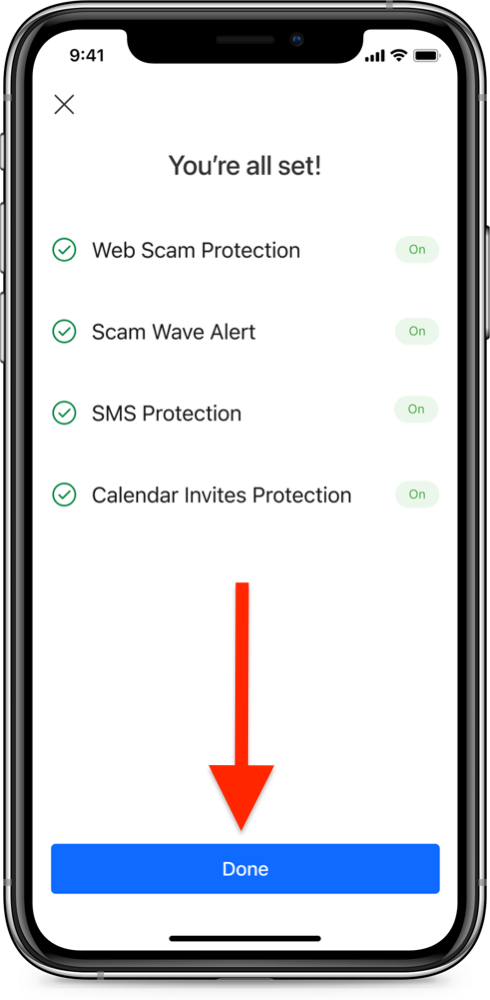
You are all set! You have successfully set up Scam Protection on your iOS device. Bitdefender is now ready to help you with:
- Automatic scam detection. Identifies and blocks scams in your email, browser, messages and other apps.
- New scams recognition. Keeps you safe by detecting even the newest scam patterns as they evolve.
- Scamio Pro. An advanced AI scam assistant that detects scams and helps you stay safe.