If you need to turn off the Bitdefender Scam Protection feature on a Windows computer, follow these easy steps.
Step 1. Open Scam Protection
- Open Bitdefender Total Security.
- On the main dashboard, either:
- Hover the cursor over Scam Protection and select Open, or

-
- Click on Protection on the left side menu, then click on Open in the Scam Protection panel.

Step 2. Go to Scam Protection Settings
- In the Scam Protection module, click on the Manage your protection option.
- This will open the Scam Protection settings.

Step 3. Disable Scam Wave Alert
- Scroll down and turn off the Scam Wave Alert option.
- The switch will change color from blue (active) to gray (disabled).
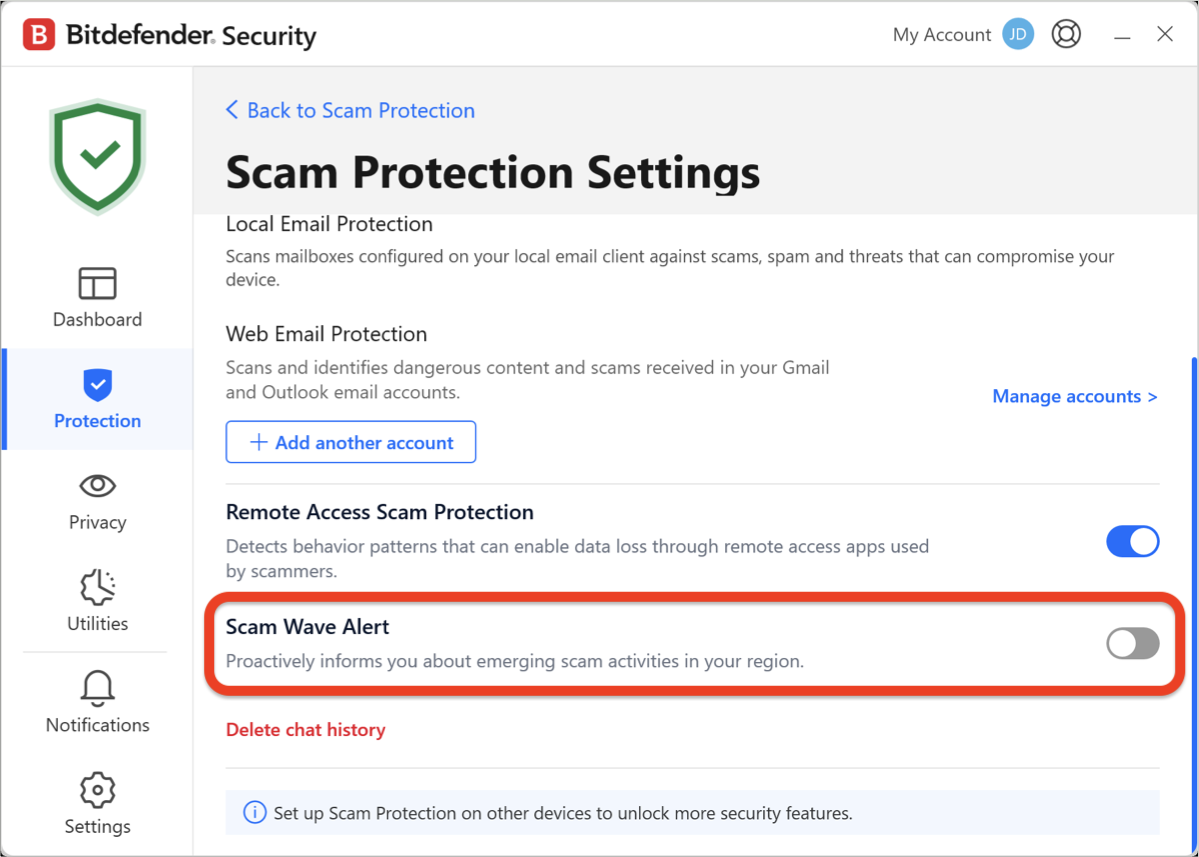
Once the Scam Wave Alert switch turns gray, Scam Protection will be disabled on your Windows computer, and you will no longer be informed about emerging scam activities in your region.